
This article provides instruction and information on the following:
About Do It Best eCommerce
Do It Best eCommerce integration helps clients build their online sites. By meeting with their designers, Do It Best eCommerce will build a custom designed site that works the way clients need it to. After the site launches, clients can update content anytime through the admin page. Everything is hosted under one roof, which means a secure online shopping experience for customers. Do It Best eCommerce also provides the ability for stores to provide customers the option to buy online, pick up in store (BOPIS).
Important: Do It Best is responsible for taxes involved with Do It Best BOPIS sales. This is reflected on the Comparative Revenue report as External Tax.

Figure 1: External Tax
Do It Best eCommerce enables you to show customers:
- Your Retail Pricing
- Your Promotional Pricing
- Your In-store Inventory
- Your Product Offering
Do It Best eCommerce provides:
- Fully Hosted Domains
- Custom Designs
- Content Integration
- Blogging
- Store Management
- Product Integration
- Shopping UX
- Advanced Analytics
- Marketing & SEO
About Do It Best eCommerce integration
All of Do it Best’s 67,000 SKU’s are ready to go with the Do It Best eCommerce integration. Custom SKUs can be added through Paladin. Pricing, inventory, special products offerings, and special pricing are all pulled in from Paladin. Clients can also track the success of their store with Do It Best eCommerce analytics tools.
Do It Best eCommerce enables uploads every 20 minutes.
Sign in to your Do It Best account for more information on their offerings and setup.
Do It Best ECommerce platform and development point of contact:
Corbin Prows
Ecommerce Platform & Development Manager
corbin.prows@doitbest.com | 260.748.5929
Cost
The following 4 scenarios have an associated Paladin cost. TSRs to refer to the Paladin Store tab in the Paladin Management Toolset for current pricing:
-
Stores with Do it Best EDI as primary
-
Stores with True Value EDI as primary (and not already paying for Do it Best EDI)
-
Stores with United EDI as primary (and not already paying for Do it Best EDI)
-
Do It Best eCommerce integration with Paladin
For Do It Best eCommerce pricing, sign in to Do It Best.
How to set up integration
Note: Do It Best Rewards must be set up for the integration. For information and instruction, refer to the Do It Best Rewards KBA.
The following steps/sections provide instruction to setting up Do It Best eCommerce integration with Paladin. These steps must be followed in the order given in the table below.
|
6. Verify inventory items correct in the webstore/turn on integration |
|
8. Sales Price Uploads for Orgill Impact ecommerce integration |
Step 1: Sign up with Do It Best eCommerce
If a Paladin client is interested in setting up an online store with Do It Best eCommerce, have them sign in to their Do It Best account for more information on their offerings and setup.
Do It Best eCommerce integration point of contact:
Cal Bada
Ecommerce Member Integration Specialist
cal.bada@doitbest.com | 260.748.5488
Be sure to let the client know that Do It Best eCommerce integration with Paladin costs: $249 initial setup and $0 monthly.
Step 2: Add products to the Do It Best eCommerce webstore
Before a Do It Best eCommerce webstore goes live, this step prepares inventory to be added to the webstore via Paladin part number (Inventory module > General tab). For instruction on preparing inventory in Paladin, refer to the following KBA: Options to enable external sync for eCommerce integration
Discuss with the client and decide which method is best.
Important: Clients need to clean up data before turning on Do It Best eCommerce integration. Any zero (0) or negative stock on hand (SOH) that hasn’t been ordered in the past 6 months needs to be removed from inventory.
Step 3: Create Help Request to set up integration
After the client’s inventory has been added to their webstore, tell the client to Submit a Help Request that asks Paladin Support to set up the Do It Best eCommerce integration. Provide these steps:
- In Paladin, from the main menu, select Help.
- From the Support list, click Submit a Help Request.
- When asked Is this a store down emergency?, click No.
- In the Submit a Help Request window, in the Category pane, select Third-party software or integrations > Third party integrations.
- In the Subject pane, select eCommerce.
- In the Description pane, enter: I have signed up with Do It Best eCommerce and am ready to set up the Do It Best eCommerce integration.
- In the Contact Information pane, enter your Phone and Email information.
- Click F7 Submit.
- A Paladin Support representative will contact you with next steps.
Step 4: Schedule time to set up integration
After you have received the Help Request to set up the integration, schedule a setup time with the client. Explain that the setup process will require their participation.
Step 5: Synchronization between Paladin and Do It Best eCommerce
Note: The following is done by Paladin Support.
The first step is to create a customer. To do this:
- Open a connection to Paladin on the client’s terminal and sign in.
- On the top ribbon, select the Customers module.
- On the bottom ribbon of the module, click F2 Add Customer.
- In the Add Customer window, enter the name of your webstore in the Name box (Note: This is the only requirement. All other fields/boxes are optional).
- Make note of the number Paladin assigns to the webstore name.
- Click F12 Add.
Once a customer has been established:
- In Paladin, from the main menu, select File > Setup.
- Select the ExternalSync tab.
- In the External Sync Configuration pane, from the Select Type list, select Do It Best BOPIS.
- In the Doit Best BOPIS pane, check Enable Synchronization.
- Fill in the following boxes:
- URL: https://api.doitbestdataxchange.com/
- Subscription-Key: The key provided by Do It Best eCommerce for your webstore.
- BOPIS Customer ID: The number Paladin assigned your webstore name when you created it in the Customer module.
- BOPIS Customer Name: This will auto-fill after you click Save.
- (Situational): DIB Account Num (stores w/o DIB EDI configured only): Enter in the Do it Best Account Number provided by Do it Best. This field is only utilized when the store does NOT use Do it Best EDI, but wishes to utilize their ecommerce solution. Refer to the Cost section of this KBA for billing for these unique situations.
- Click Save, then click Close.
Step 6: Verify inventory items correct in the webstore/turn on integration
At this time, you should turn on Paladin billing for the integration.
Note: Doitbest.com is fed by APIs, so once data is sent from Paladin to the DIB servers the client will be able to see the inventory data on their webstore after 24 hours of the synchronization.
Ask the client to verify their inventory items ported to their Do It Best eCommerce webstore correctly.
- If no data is getting through the integration, the client should call Paladin Support.
- If data appears incomplete on the webstore, the client should call Do It Best eCommerce.
7. Performing a Manual Upload
After all synchronization is complete, inventory data will be updated on the client’s webstore every 24 hours.
The following can be manually uploaded:
-
- Perform Full Detail Upload (this must be done first)
- Perform Full Inventory Upload
- Perform Full Retail Upload
- Perform Full Promotion Upload
- In Paladin, from the main menu, select File> Setup.
- Select the ExternalSync tab.
- In the External Sync Configuration pane, from the Select Type list, select Doit Best BOPIS.
- In the Manual Upload pane, press the corresponding buttons as to what upload they want to perform.
8. Sales Price Uploads for Orgill Impact ecommerce integration
In order for sales data to be transmitted to DIB in real time when an invoice is completed, Enable Sales Upload via API must be checked.
To set this:
- In Paladin, from the main menu, select File > Setup.
- Select the Rewards Tab.
- In the Rewards pane, select Do It Best Rewards from the Customer rewards program list.
- In the Do It Best pane, check Enable Do It Best Rewards.
- In the Data Upload pane, select Do It Best Sales Data.
- In the Do It Best Upload pane, check Enable Sales Upload via API.
- Click Save, then click Close.
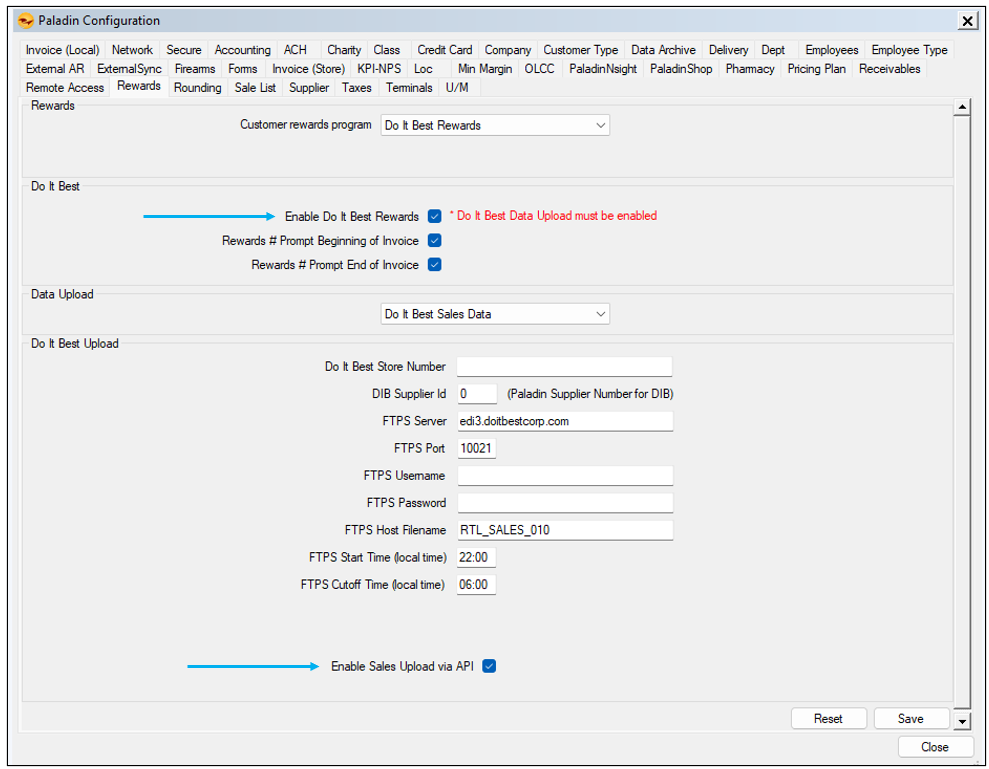
Figure 2: Enable Sales Upload via API
9. Processing Do It Best eCommerce BOIPS orders in Paladin
When an order is placed online, Paladin receives the order as an on-hold “Reserve” invoice, and stock on hand is immediately decreased for the part(s). Once the store marks the order as ready for pick-up in the Do It Best portal, the invoice becomes a finalized invoice in Paladin. If the customer cancels the order via the eCommerce site, Paladin receives the cancellation notice and processes it as a return.
Note: Enable Inventory On Hold must be enabled for items to be On Hold status in Paladin.
- In Paladin, from the main menu, select File > Setup.
- Select the Invoice (Store) tab.
- In the Invoice pane, check Enable Inventory On Hold.
To view the order status in Paladin:
- In Paladin, on the top ribbon, select the Invoice/Quote module.
- On the bottom ribbon of the Invoice/Quote tab, select F6 Recall Transaction.
- In the Recall Transaction window, enable On Hold and check Show for all customers.
The Recall Transaction window populates with Do It Best eCommerce items with a status of Ordered.
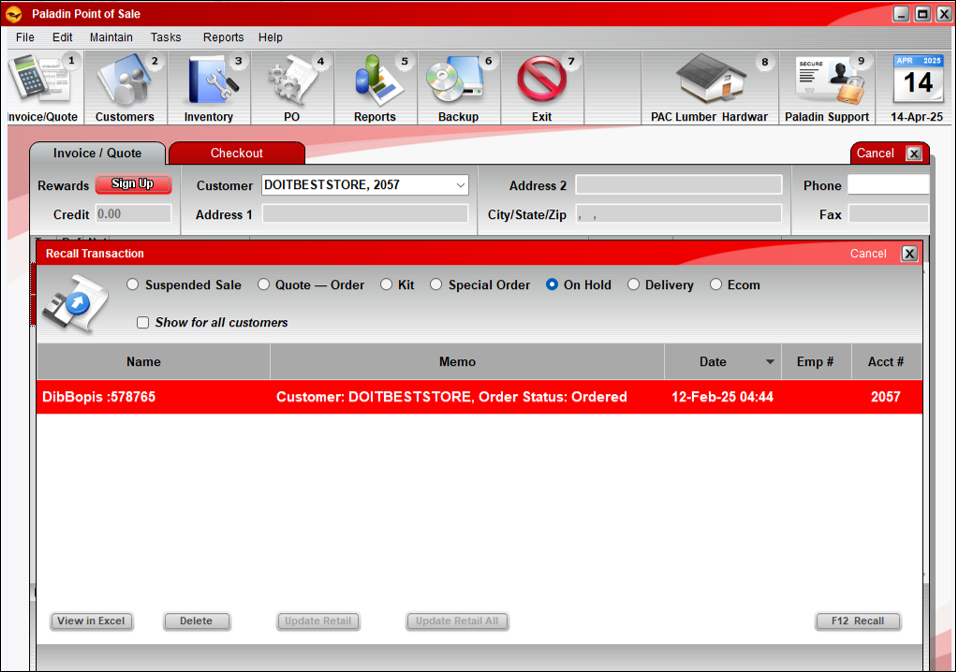
Figure 3: DIB Order Status in Paladin
- To view an order, highlight the order, and on the bottom right of the window, click F12 Recall.
The order opens in the Invoice/Quote tab where items in the order can be viewed.
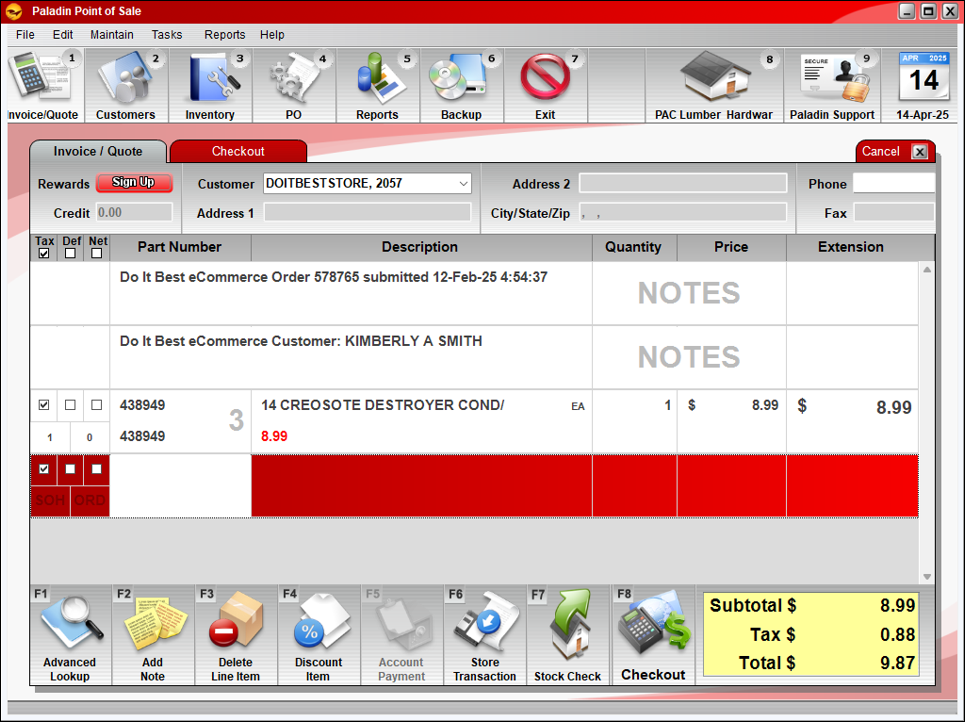
Figure 4: DIB eCommerce order details
If you have questions or suggestions about this information, contact support@paladinpos.com.