
This feature allows clients to check the UPC, or potential UPC, associated with a part in order to identify bad or incorrect UPCs and remove them from their database. This corrects the wrong image and rich description showing for parts in PaladinShop™.
To use this feature:
- In Paladin, select the Inventory module.
- Enter the part number in the Part # box and press Enter.
- On the bottom ribbon of the module, select F6 Serial # & Alt Part #.
- In the Alternate Part # & Serial # window, enable Alt Part #.
- Highlight the Alternate Part #.
- Press UPC Lookup.
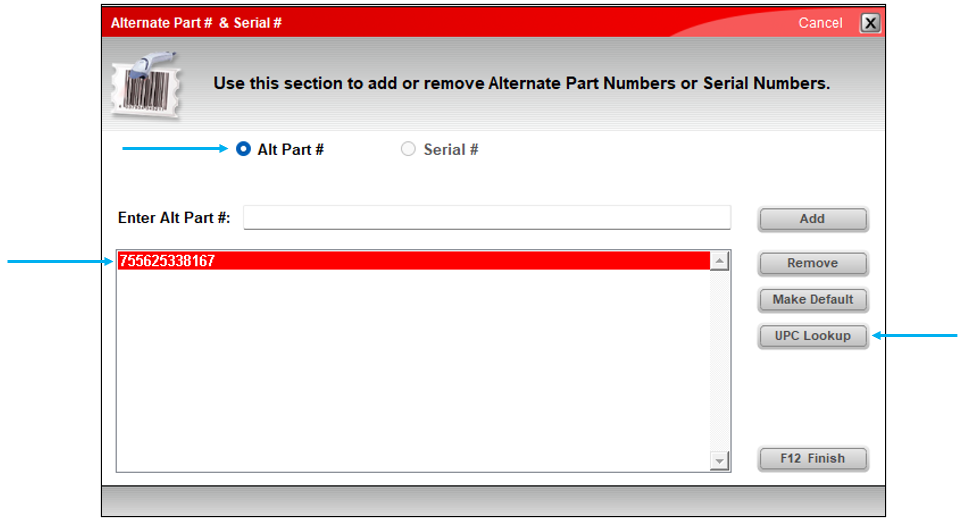
Figure 1: Alternate Part # & Serial # window
The BARCODE LOOKUP site Paladin uses opens with a picture and long description of the item.
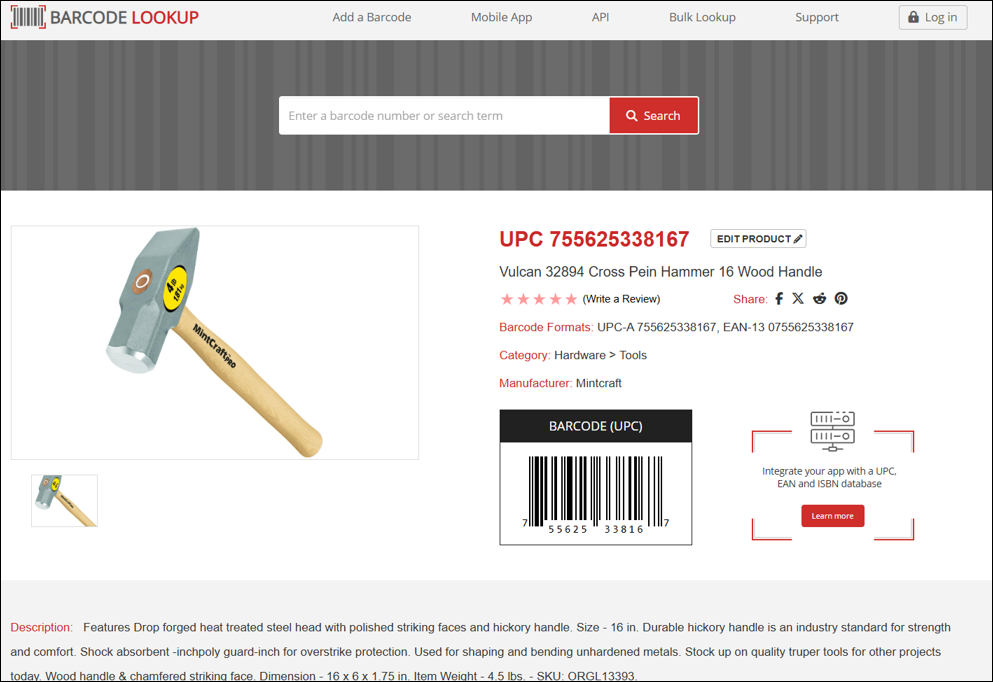
Figure 2: BARCODE LOOKUP site
- In the Alternate Part # & Serial # window, select F12 Finish.
If you have questions or suggestions about this information, contact support@paladinpos.com.
*Content is subject to change. For the most recent version, visit the Help Portal.
Printed on: 2/04/26
