
With the Insert Quote feature, quotes can be inserted into invoices. With the No Del setting, quotes can be inserted into invoices customers use for projects they use over time (for information on this, refer to the Quotes: No Delete Feature KBA).
To insert a quote into an invoice:
- In Paladin, select the Invoice/Quote module.
- Create an invoice by adding items.
- In the blank line after the last item is added, right click, and at the bottom of the list that open, select Insert Quote.
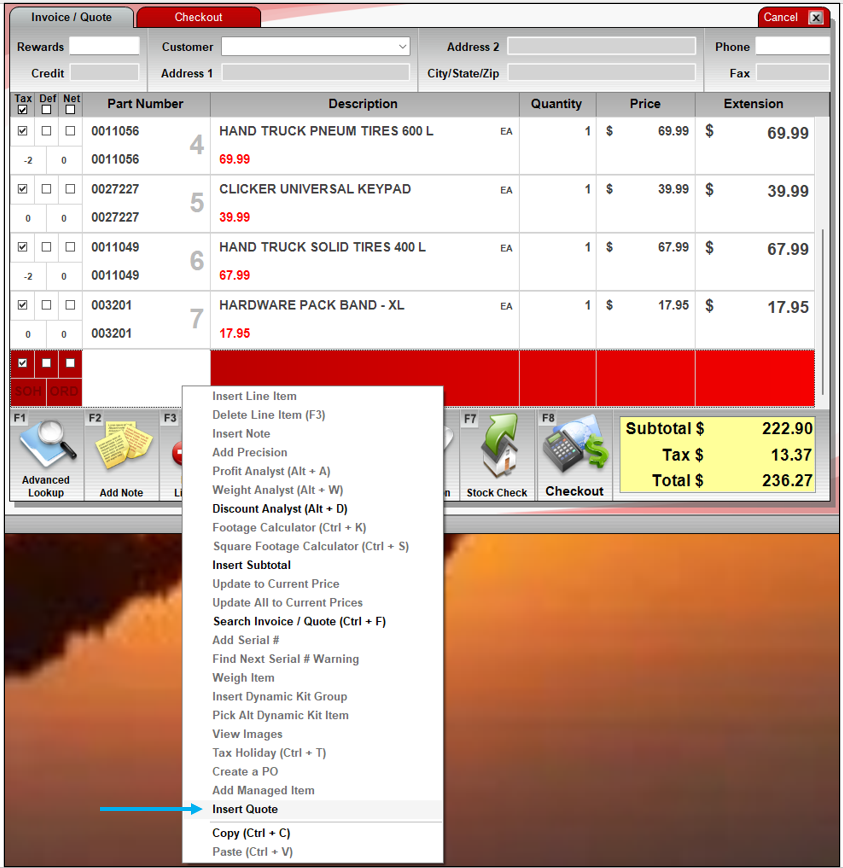
Figure 1: Insert Quote feature
The Insert Quote/Recall and Insert an Existing Quote window opens.
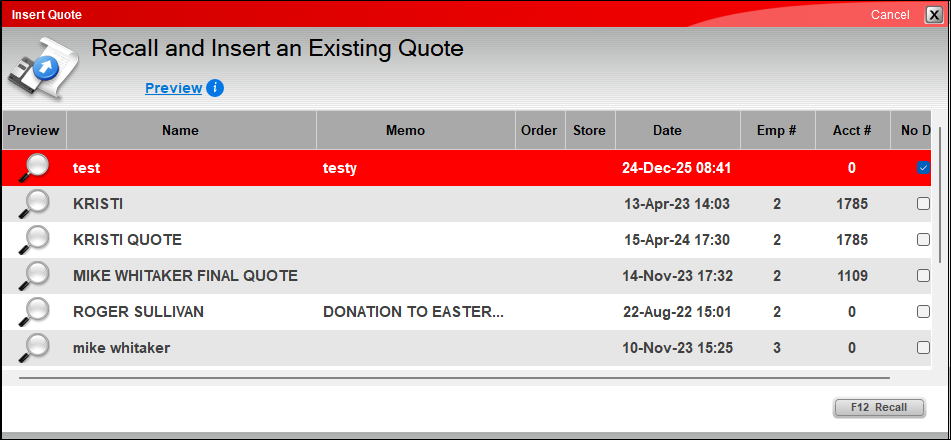
Figure 2: Insert Quote/Recall and Insert an Existing Quote window
- Select a quote and click F12 Recall.
The Insert Quote message window opens.
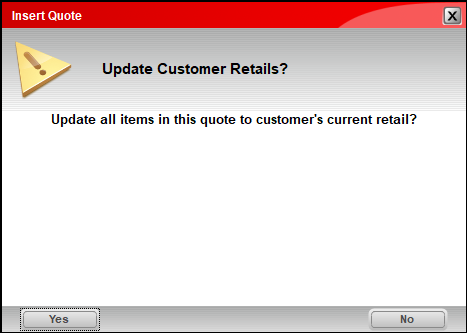
Figure 3: Insert Quote message window
- Click Yes.
- In the invoice, a Quote Inserted message is shown as a Note, the items of the quote are shown on the next line, then the following line states End of ‘test’ quote as a Note.
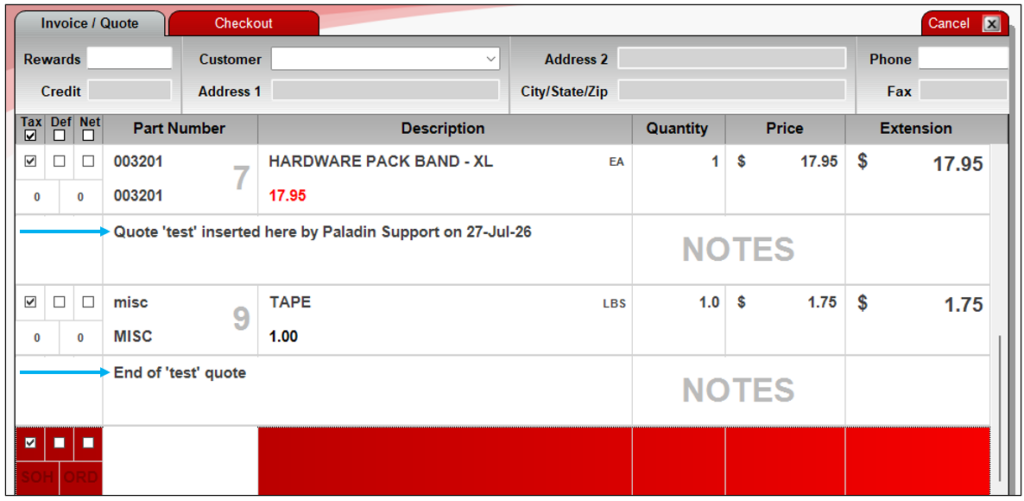
Figure 4: Inserted quote
- More items can be inserted in the invoice if needed.
- Complete the checkout of the invoice.
If you have questions or suggestions about this information, contact support@paladinpos.com.
*Content is subject to change. For the most recent version, visit the Help Portal.
Printed on: 10/05/26