
Clients can now set a Transaction Details Report to print when their statements are generated.
To set this feature:
- In Paladin, from the main menu, select File > Setup.
- Select the Receivables tab.
- In the Statements pane, check Print Transaction Details with Statements.
- Click Save, then click Close.
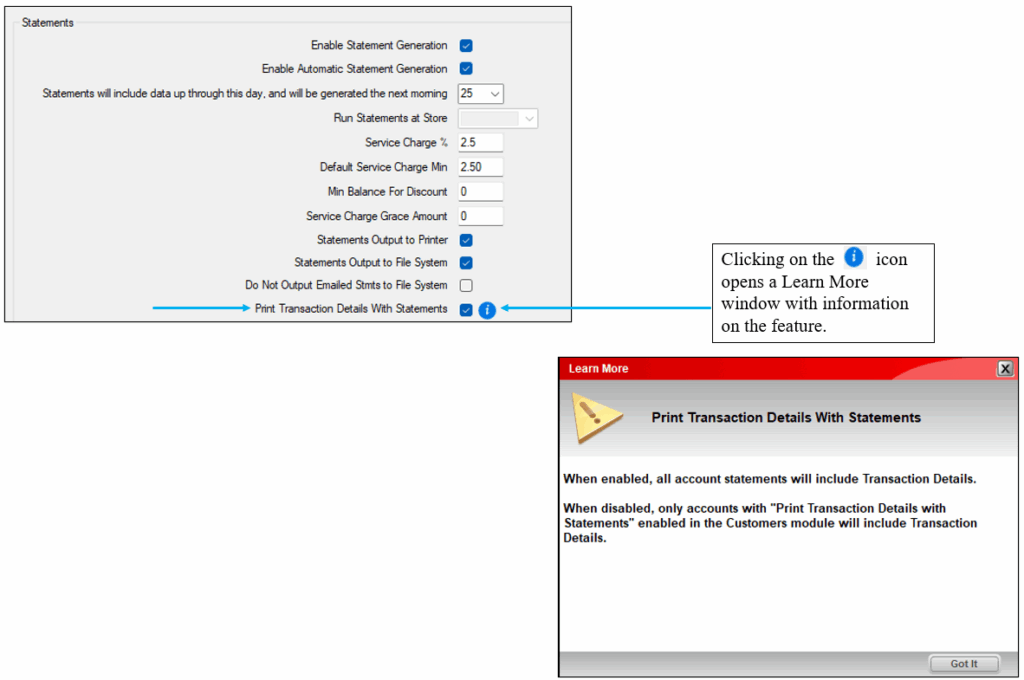
Figure 1: Print Transaction Details with Statements
This feature is then reflected in the Customer module’s Form Control pane.
When Print Transaction Details with Statements is set, Print Transaction Details with Statements? is checked and grayed out.
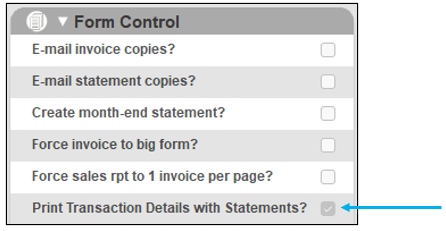
Figure 2: Customer module/Form Control/Print Transaction Details with Statements?
If Print Transaction Details with Statements is not set , then Print Transaction Details with Statements? is not checked and is visible. The user can check this, and Print Transaction Details with Statements will work for the user for single statements until unchecked.
If you have questions or suggestions about this information, contact support@paladinpos.com.
