
The Order Generation report is designed to consolidate ordering methods.
Order Generation offers three approaches: AI Suggested Order, MinMax, and History-Based.
- AI Suggested Order (Recommended)
Uses advanced forecasting to recommend order quantities based on sales history, seasonality, inventory trends, and other factors. It helps maintain optimal stock levels, maximize sales opportunities, and reduce out-of-stocks. This is Paladin’s recommended best practice. - MinMax
Max values can be established manually and locked or automatically calculated by Paladin to assist with product seasonal stocking requirements. When inventory level is below Max Qty by 1 Order Qty or greater, Paladin will suggest ordering the product. - History-Based (based off Items Sold Report)
Reorders products based on sales during the selected date range. The order quantity reflects the amount sold within that period.
Note: Changing the Min value does not affect the results. Despite the Min/Max label, the feature works primarily from the Max quantity. When stock on hand (SOH) falls below the Max quantity by the amount specified in the Order Qty field, the item is added to the Min/Max order. The system then recommends an order quantity that brings SOH back up to the Max quantity. In practice, this feature
consistently attempts to maintain inventory at the Max quantity.
To open the Order Generation report:
- In Paladin, select the Reports module.
- In the Report Area pane, select Inventory > Purchase Order.
- In the Report List pane, select Order Generation.
- In the Choose Report pane, click F12 Next.
- Fill in values in the Report Settings pane.
- In the Additional Settings pane, enable one of the following (the Learn More
 provides definitions for the three):
-
- AI Suggested Order
- MinMax
- History-Based
The Limit to Supplier Position # default is Any, but there is the option of selecting a supplier.
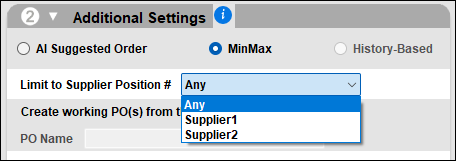
Figure 1: Limit to Supplier Position #
When Create working PO(s) from this data?, the PO Name field becomes active to enter a purchase order name.

Figure 2: Create working PO(s) from this data?/PO Name field
- In the Sorting Options pane, set the parameters and click F12 Run Report.
The Suggested Order Report opens.
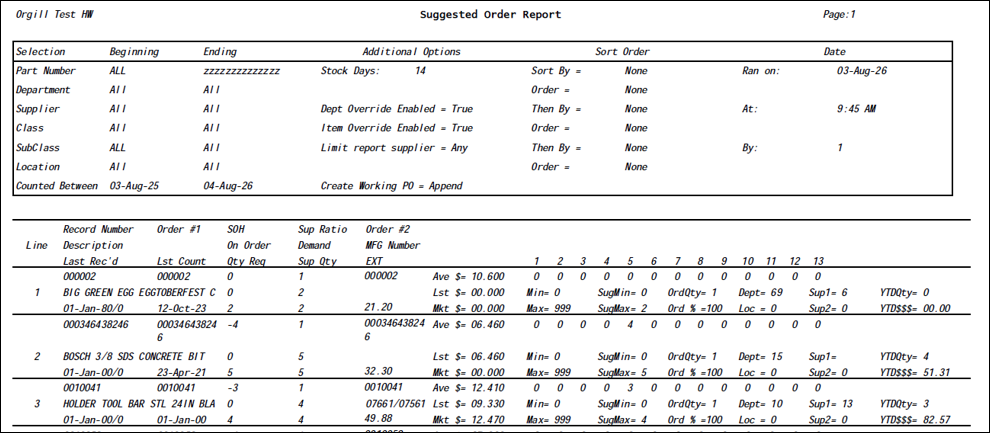
Figure 3: Suggested Order report
If you have questions or suggestions about this information, contact support@paladinpos.com.