
In Paladin, EDI will update supplier market cost; however, for non-EDI suppliers, this must be done manually. The following steps allow Supplier Market Cost and Supplier Order Quantity to be updated.
- In Paladin, from the main menu, select Maintain > Data Viewer.
- Select the Inventory tab.
- Select the Export tab.
- In the Export Options pane, select Supplier Inventory Data from the Inventory Type list.
- Select a supplier from the Suppliers list.
- Click View.
- The Inventory table populates where changes can be made to the SUPPLIER_MARKET_COST and SUPPLIER_ORDER_QUANTITY columns.
To save the table, select either Tab Delimited or Excel from the File Type list and click Save.
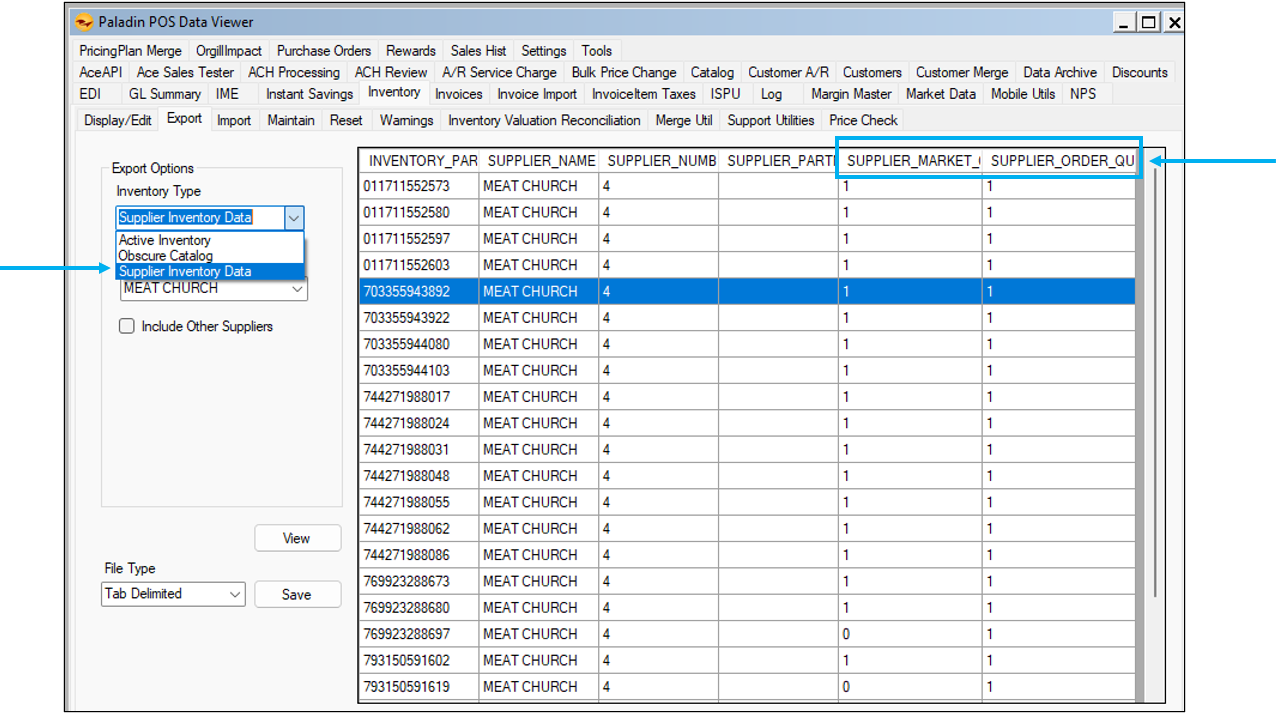
Figure 1: Supplier Inventory Data
If you have questions or suggestions about this information, contact support@paladinpos.com.
*Content is subject to change. For the most recent version, visit the Help Portal.
Printed on: 4/12/26
