
There are three (3) options on presentation of available Ace Rewards Coupons. These options control a presentation on the checkout screen of invoice purchase.
- Always Show Customer Coupons – presents a list during checkout with all valid customer coupons, which can be applied to an invoice.
- Button to Look Up Customer Coupons – presents a button to cashiers during checkout that, when clicked, presents a list of all valid customer coupons that can be applied to an invoice.
- Disable Presentation of Ace Coupons -disables the Ace Rewards Coupon Presentation feature for all customers.
To set the options:
- In Paladin, from the main menu, select File > Setup.
- Select the Rewards tab.
- In the Rewards pane, from the Customer rewards program list, select Ace Rewards.
- In the Ace Hardware pane, check Enable Ace Rewards.
- Check Enable Ace Rewards Coupon Validation.
The Ace Rewards Coupon Presentation pane becomes active.
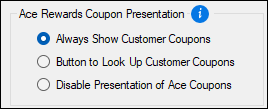
Figure 1: Ace Rewards Coupon Presentation
- Make the choice by enabling the radio button next to the option.
- Click Save, then click Close.
Corresponding windows
Always Show Customer Coupons
After setup in Paladin, to view available coupons at time of checkout:
- In Paladin, on the top ribbon, select the Invoice/Quote module.
- In the Rewards box, scan the Rewards card or enter the Rewards card number.
- Optional: On the bottom ribbon of the module, click F1 Advanced Lookup to find customer account information.
- Scan the customer’s items.
- On the bottom ribbon, click F8 Checkout.
The Available Reward Coupons window opens.
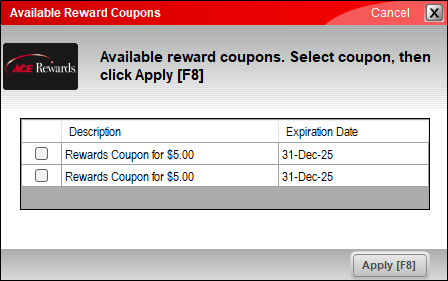
Figure 2: Available Reward Coupons
The cashier shares this screen, or information, with the customer so that the customer can choose a coupon to use toward their overall purchase.
Note: More than one coupon can be used toward the invoice total.
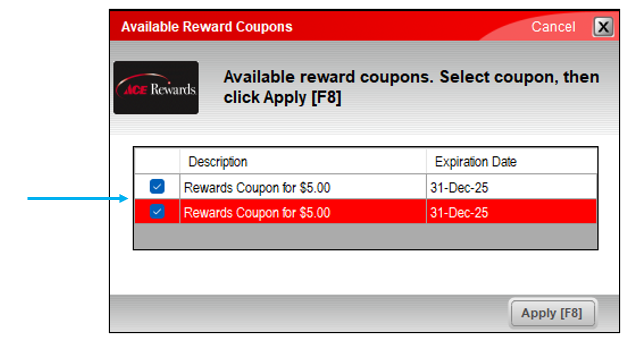
Figure 3: Multiple coupons selected
If the only coupons a customer has available exceed the invoice amount, the Coupon Amount window opens informing the customer that, by using the coupon, the coupon’s value will be reduced to match the invoice total.
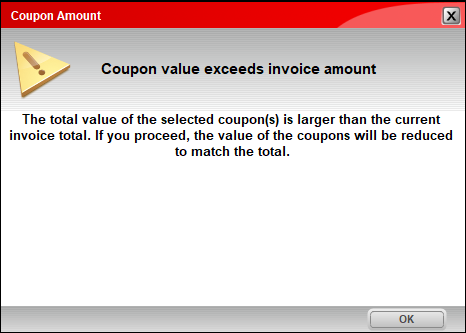
Figure 4: Coupon Amount
If the customer is comfortable using a coupon, the cashier selects Apply [F8] to apply the coupon to the invoice and proceeds with completing the transaction.
Button to Look Up Customer Coupons
When enabled, this function presents a Find Coupons button to cashiers during checkout.
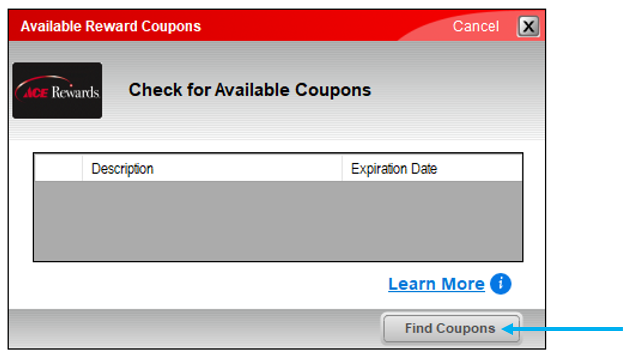
Figure 5: Check for Available Coupons
When Find Coupons is clicked, the window populates with a list of all valid coupons that can be applied to an invoice.
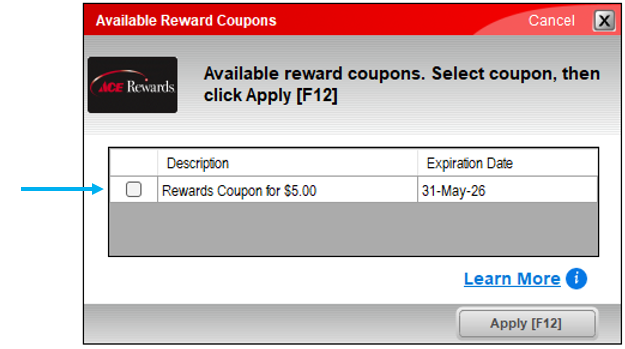
Figure 6: Available reward coupons
Disable Presentation of Ace Coupons
When enabled, this function disables the Available Reward Coupons for all customers.
Create coupon at checkout
There are times when coupons can be created at the time of checkout, for example, if a customer is willing to purchase an item that may be damaged if they can get a discount, or a store offers their own coupon.
To apply such coupons:
In the Checkout tab of the Invoice/Quote module, the bottom ribbon will show F5 Coupon. Pressing this adds a coupon value to the Payment Type.
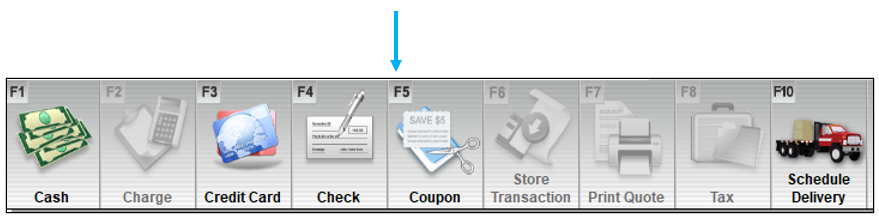
Figure 7: F5 Coupon
The Coupon Window opens where the coupon type can be selected.
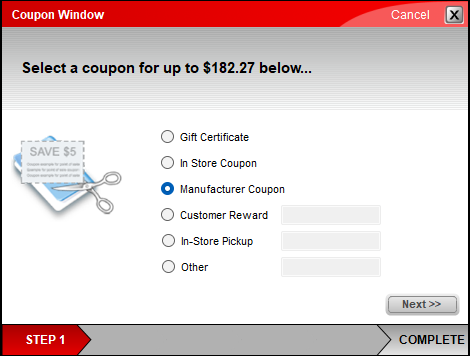
Figure 8: Coupon Window
Pressing Next>> applies the coupon to the invoice.
If you have questions or suggestions about this information, contact support@paladinpos.com.
