
Ace’s newest gift card lineup features new designs and scannable barcodes, allowing cashiers to activate cards instantly and scan the barcode to quickly redeem the funds.
This article provides information and instruction on the following:
- What’s new
- Benefits
- Ace Gift Cards now Available
- Setup in Paladin
- How to sell gift cards at the register
Important: Other than the new Fiserv configuration, instructions for Ace gift cards are valid and should be followed.
What’s new
- New wrapped carrier with pull tab to access barcode
- Secure enclosed packaging and barcodes that reflect only the embossed card number to support new anti‑fraud requirements
- New designs
Benefits
- Quickly pull the tab and scan the barcode to activate
- Scan the barcode to redeem funds at point of purchase
- Streamline checkout and better customer experience
Ace Gift Cards now Available
|
Ace No. |
Product Description |
|
9116709 |
Ace Branded Gift Card |
|
9116710 |
Ace Paint Gift Card |
|
9116711 |
Ace Holiday Gift Card |
|
9116712 |
Ace Birthday Gift Card |
|
9116713 |
Ace L&G Gift Card |
|
9116714 |
Ace Mother’s Day Gift Card |
|
9116715 |
Ace Father’s Day Gift Card |
|
9116716 |
Ace Merch Return Gift Card |
|
9116717 |
Ace Branded $50 Gift Card |
|
9116718 |
Ace Branded Promo Gift Card |
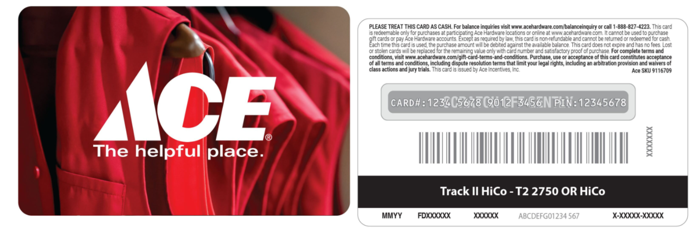
Figure 1: Ace Branded Gift Card (Ace No. 9116709)
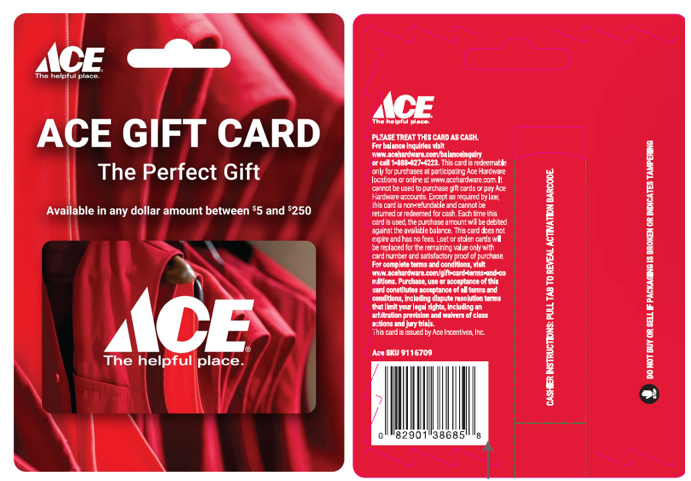
Figure 2: Wrapped Gift Card Carrier
Setup in Paladin
To enable Fiserv gift cards in Paladin, perform the following:
- In Paladin, from the main menu, select File > Setup.
- Select the Credit Card tab.
- In the Credi Cards pane, select Fiserv Gift Solutions from the Processor list.
- In the Gift Cards pane, check Fiserv Gift Card Activation and Fiserv Gift Card Redemption.
- In the Fiserv Gift Card Class Number box, enter an Ace Number found in the table in the Ace Gift Cards now Available section of this KBA.
- In the Fiserv Gift Card Reload Class Number box, enter an Ace Number found in the table in the Ace Gift Cards now Available section of this KBA.
- The Fiserv MID, Fiserv SID, Fiserv API Key, and Fiserv Secret are provided by Fiserv.
- Click Save, then click Close.

Figure 3: Paladin Configuration/Fiserv
How to sell gift cards at the register
- Log in to Paladin.
- Scan the UPC on the gift card package. This will post the Ace Gift Card.
- Input the quantity of cards and dollar amount, if applicable. Note: Fixed price Ace Gift Card SKUs automatically load.
- Total out the transaction and accept payment.
- This returns you back to posting to activate the card. Either swipe the card or scan the barcode (i.e. the card number).
Establish the following settings:
|
Option # |
Description |
Value |
Reason |
|
2149 |
Allow barcode activation of FDMS gift card |
Y = Yes |
Allows you to successfully scan the barcode of an Ace gift card at POS |
|
2150 |
Default value for FDMS gift card activation method |
B = Barcode Scan |
Provides ability to scan or swipe Ace Gift Cards at POS |
- These options are visible only if option 5360 (Gift/Cash card type) is set to C=FDMS/ValueLink
- For more information: Ace Gift Card Ace Way of Retailing best practice documentation
- Additionally, the magnetic stripe remains available for activation without the carrier or redemption.
If you have questions or suggestions about this information, contact support@paladinpos.com.
