
Product images are stored in Paladin Cloud Storage. After initial setup, images can be viewed through the Invoice/Quote and PO modules by right clicking on an item and selecting View Images. Images can also be viewed in the Advanced Lookup window by clicking on the magnifying glass next to the item.
When an image is selected, a tile is opened with the image shown. By clicking and holding on the image, it can be moved around a single monitor or can be moved to a secondary monitor so it can be taken off-screen, and users can interact with POS normally. If your cursor is moved to other parts in the invoice, the image preview window will update with the part’s images, if they exist, otherwise, we show the “image not found” placeholder.
There are two ways to inventory view images, from Invoice/Quote and PO modules or Advanced Lookup.
Viewing images in Invoice/Quote
When in an invoice in Paladin, right click on an item and select View Images.
Note: View Images will be grayed out if images are not set in Remote Data Access.
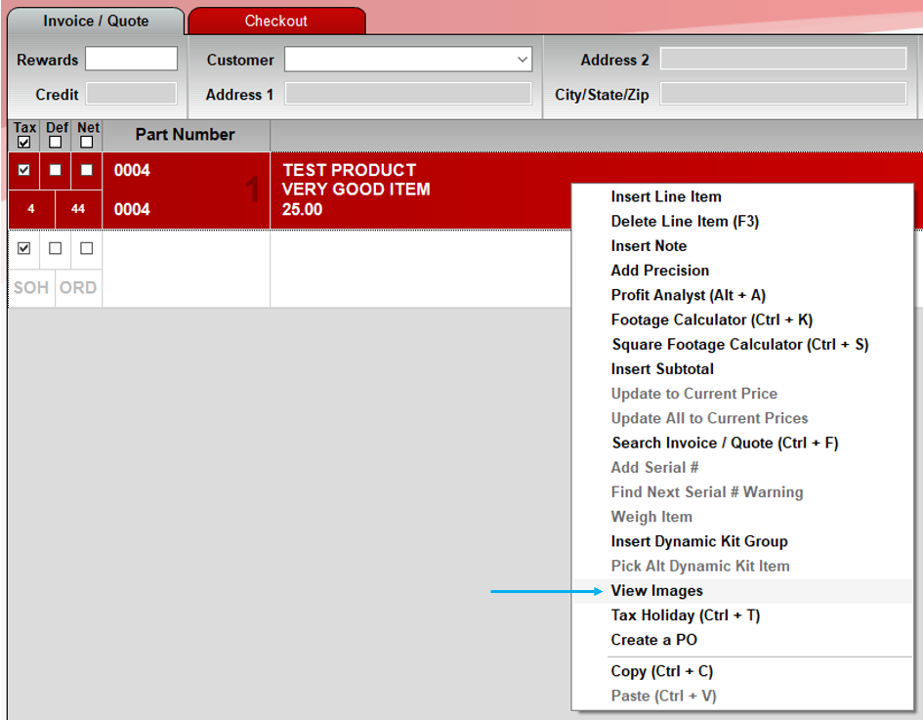
Figure 1: Invoice/Quote/View Images
When an image is selected, a tile is opened with the image shown. By clicking and holding on the image, it can be moved around a single monitor or can be moved to a secondary monitor so it can be taken off-screen, and users can interact with POS normally. If your cursor is moved to other parts in the invoice, the image preview window will update with the part’s images, if they exist, otherwise, we show the “image not found” placeholder.
PO Module
When in an PO in Paladin, right click on an item and select View Images.
Note: View Images will be grayed out if images are not set in Remote Data Access.
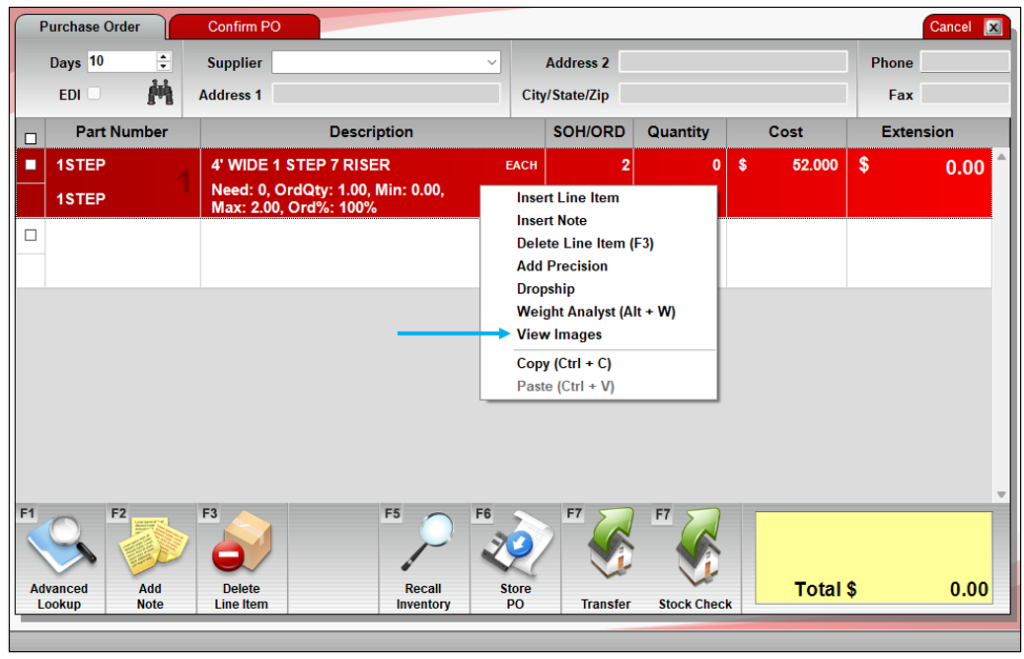
Figure 2: PO/View Images
When an image is selected, a tile is opened with the image shown. By clicking and holding on the image, it can be moved around a single monitor or can be moved to a secondary monitor so it can be taken off-screen, and users can interact with POS normally. If your cursor is moved to other parts in the invoice, the image preview window will update with the part’s images, if they exist, otherwise, we show the “image not found” placeholder.
Viewing images in Advanced Lookup
- On the top ribbon of Paladin, select the module (Invoice/Quote, Inventory, or PO).
- In the module, on the bottom ribbon, select F1 Adv. Lookup.
- In the Advanced Lookup window, enable a search parameter from the following options: Class, Department, Location, Supplier, or Keyword.
- After you have enabled your search parameter, click Find >>. The Advanced Lookup window populates with parts and their corresponding data.
- Find and click the magnifying glass next to a part. An image of that part appears.
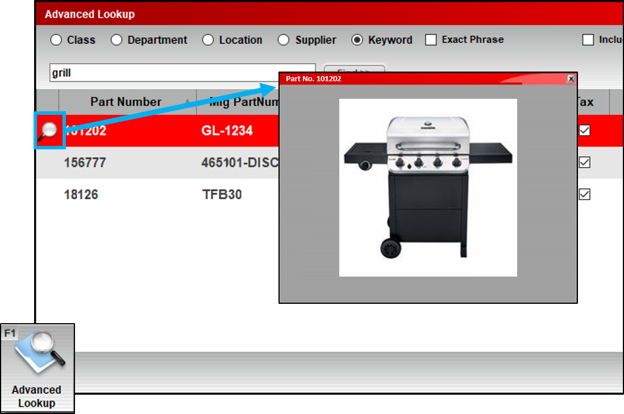
Figure 3: Advanced Lookup/Image of a part
If you have questions or suggestions about this information, contact support@paladinpos.com.
