
- Audio Instructions are enabled.
- Payment Processor is selected.
- Inactivity Timeout is established.
- Printers are assigned.
- Bin Tag Print options are assigned.
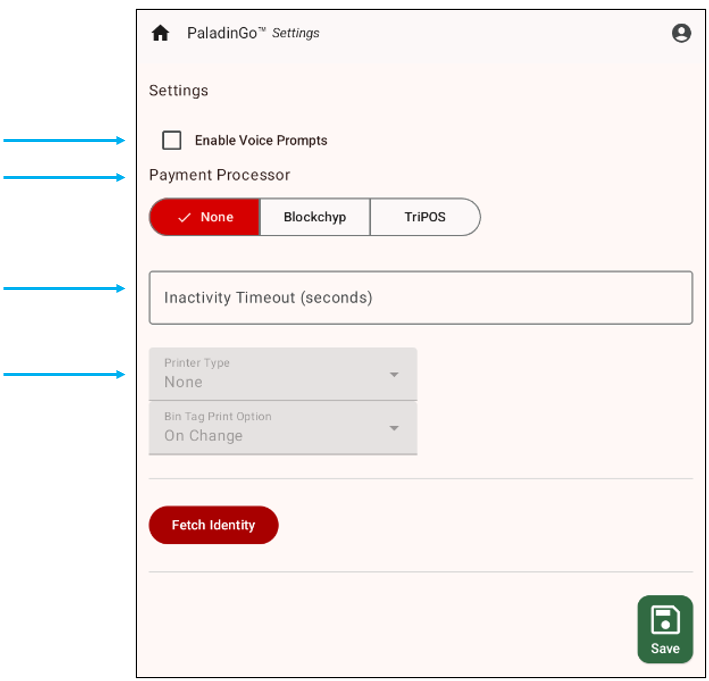
Figure 1: Settings module
Important: The screen captures (Figures) in this article represent how the modules appear on Android devices. With this, modules and their attributes will appear slightly different on iOS devices, but the functionality is identical. Please follow the written instructions as they are the same for both platforms.
Enable Audio Instructions
For information on Audio Instructions and on settings in Paladin, refer to the Enable Action Prompts section of PaladinGo™ Paladin Configuration Settings
Once settings are made in Paladin, set Audio Instructions in PaladinGo by checking Enable Voice Prompts.
Setting Payment Processor
PaladinGo offers two credit card processors:
BlockChyp uses the Equinox Luxe 6200M device for credit card processing on PaladinGo. triPOS uses the Link/2500 LE device.
Blockchyp
Important: Blockchyp uses the Equinox Luxe 6200M device that needs to have Cloud Relay Mode enabled. This setting is enabled on the BlockChyp portal. The credit card terminal also needs to be plugged into power (either USB or a wall adapter) to initiate a successful Ping Test.
To set Blockchyp as the Payment Processor:
- Under Payment Processor, tap Blockchyp.
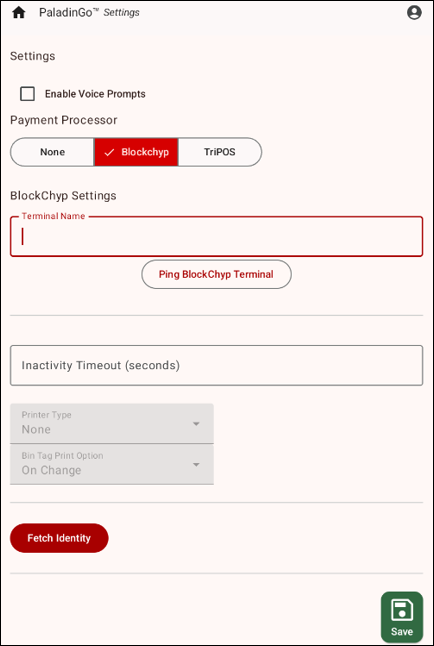
Figure 2: Settings module
A widow opens asking if you allow PaladinGo to connect to a nearby device.
- Tap Allow, and make note of the terminal PaladinGo is connected to.
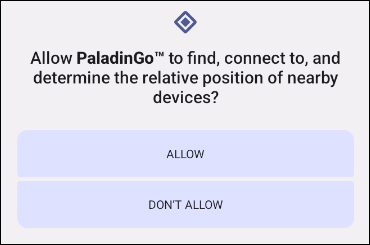
Figure 3: Device connection message
- Under BlockChyp Settings, in the Terminal Name field, enter the name of the terminal (this is the name given to the Equinox Luxe 6200M device used with that particular mobile device) associated with the PaladinGo device.
Note: If you use more than one PaladinGo device, it is best to keep the same Equinox Luxe 6200M device with that device. Marking both with a number or other identifier to how they are used together is suggested.
Figure 4: BlockChyp settings
- Tap Ping BlockChyp Terminal to establish the connection to the Equinox Luxe 6200M device.
The Ping Result message window opens letting you know if the connection is a success or a failure.
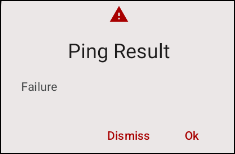
Figure 5: Ping Result message
If the message is Failure, check that the BlockChyp terminal is plugged in and the terminal has Cloud Relay Mode enabled.
- Tap Save.
triPOS
triPOS uses the Link/2500 LE device. For instruction on setting up the Link/2500 LE device, refer to the Setting up Bluetooth for Link/2500 LE Credit Card device KBA.
To set triPOS as the Payment Processor:
- Under Payment Processor, tap TriPOS.
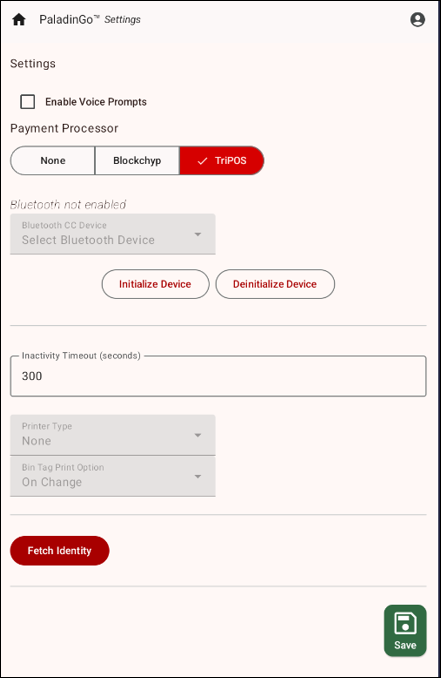
Figure 6: Payment Processor/triPOS
Inactivity Timeout
Inactivity Timeout determines the amount of time the device will remain active when not being used.
- To set Inactivity Timeout, enter a number between 1 and 300 seconds (the default is 300 seconds).

Figure 7: Inactivity Timeout
- Tap Save.
Set Bluetooth Permissions
To set Bluetooth permissions:
- Tap Blockchyp.
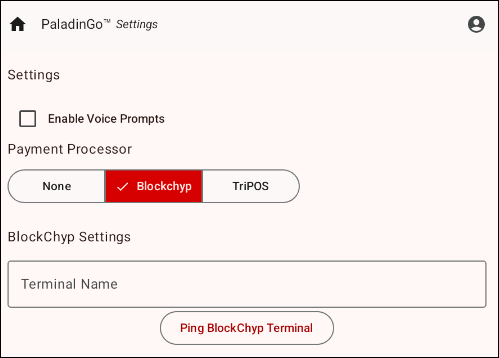
Figure 8: Set Blockchyp
- From the Printer Type list, tap Portable Printer.
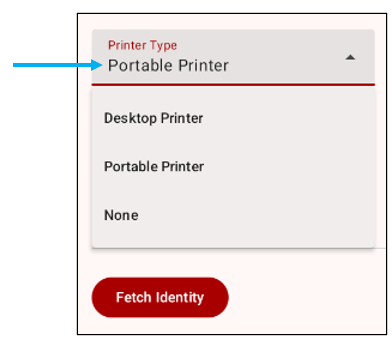
Figure 9: Printer Type/Portable Printer
The following Bluetooth lists open:
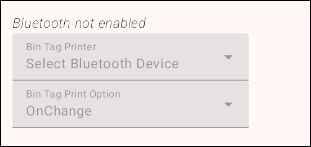
Figure 10: Bluetooth lists
- From the Bin Tag Printer Select Bluetooth Device list, select the Bluetooth device synced to the PaladinGo device.
- In the Bin Tag Print Option list, select from the following options:
Note: PaladinGo can only be connected to TSC Alpha 3RB and TSC Alpha 30RB printers for printing bin tags.
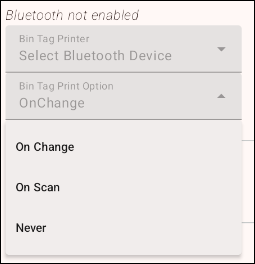
Figure 11: Print options
- OnChange – Print new bin tag if a change is made to the bin tag.
- OnScan – Print when scanning.
- Never – No printing.
When all settings have been established, tap the Save icon. The following Information message opens letting you know Configuration values saved:
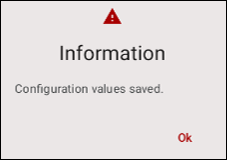
Figure 12: Configuration values saved message
Fetch Identity
To check that Identity credentials are correct:
- Tap Fetch Identity.
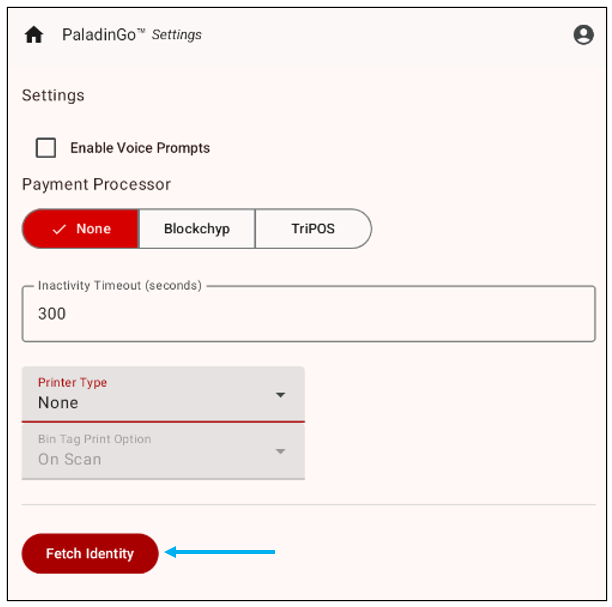
Figure 13: Fetch Identity
If Identity Credentials are found, the Information window opens stating that Identity credentials fetched.
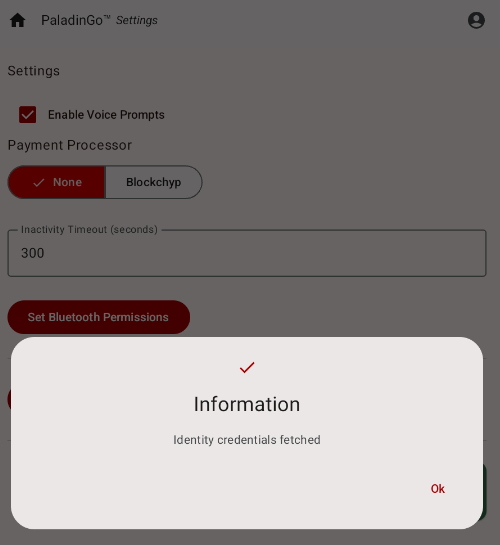
Figure 14: Information pane/Identity credentials fetched
- Tap Ok.
If you have questions or suggestions about this information, contact support@paladinpos.com.
