
The following is instruction on setting up Bluetooth for Link/2500 LE Credit Card device:
- Power on the triPOS Link/2500 LE Device.
- Press 2634 to prompt the menu, then confirm by pressing F.

Figure 1: F button
- In the menu, scroll down using the F2 and F3 keys until you see Control panel. Select this.
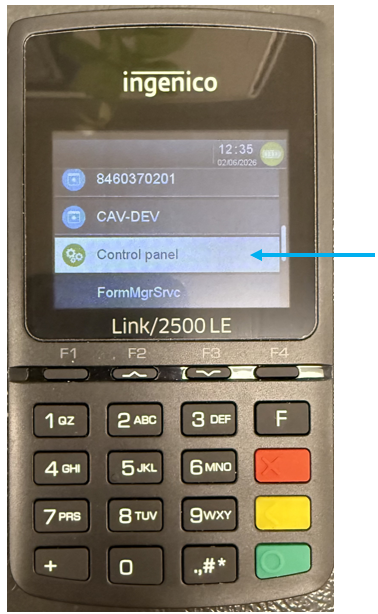
Figure 2: Control panel
- In the Control Panel, scroll down to Terminal settings. Select this.
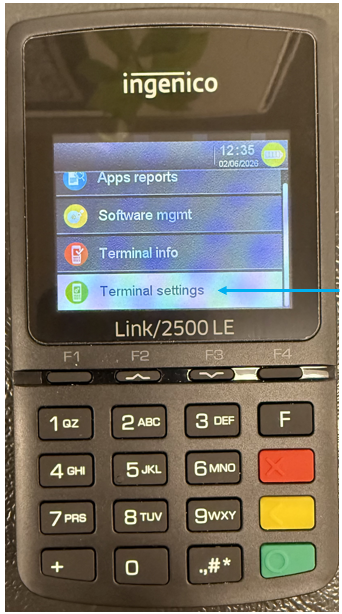
Figure 3: Terminal settings
- In Terminal settings, scroll down to Comm means.
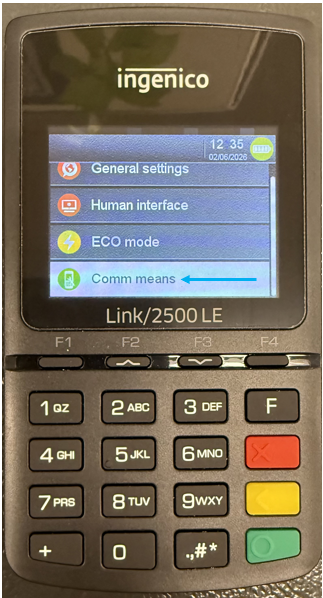
Figure 4: Comm means
- In Comm means, select Bluetooth.

Figure 5: Bluetooth
- In Bluetooth, select Switch on.
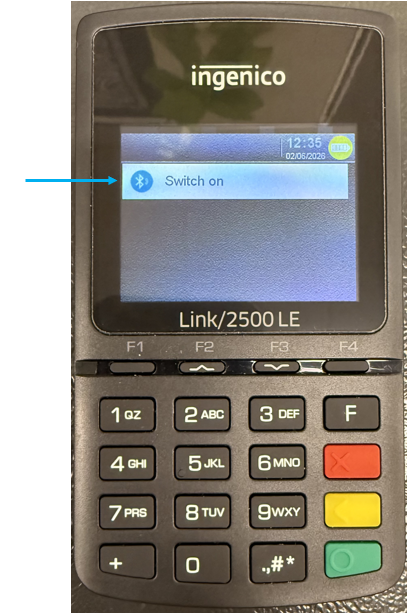
Figure 6: Switch on
- Confirmation text will appear. After this, back in the Bluetooth menu, select Phone pairing.
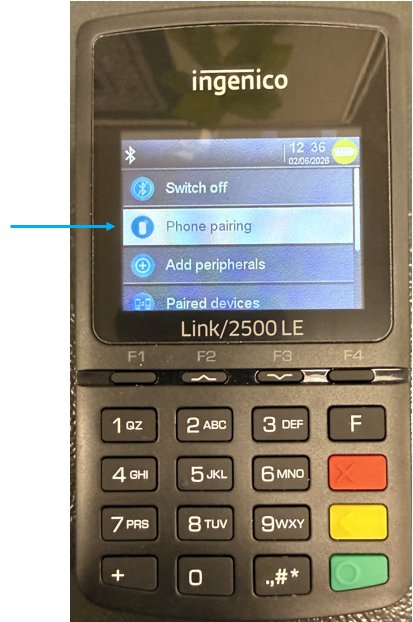
Figure 7: Phone pairing
- The Link/2500 LE will now become visible to nearby devices with text confirmation on the screen.
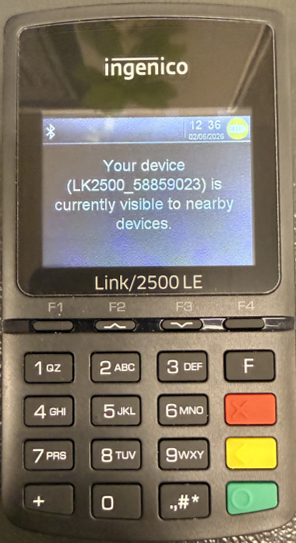
Figure 8: Text confirmation
- On the PaladinGo device, navigate to standard Android Settings > Connected Devices.
- Select Pair new device.
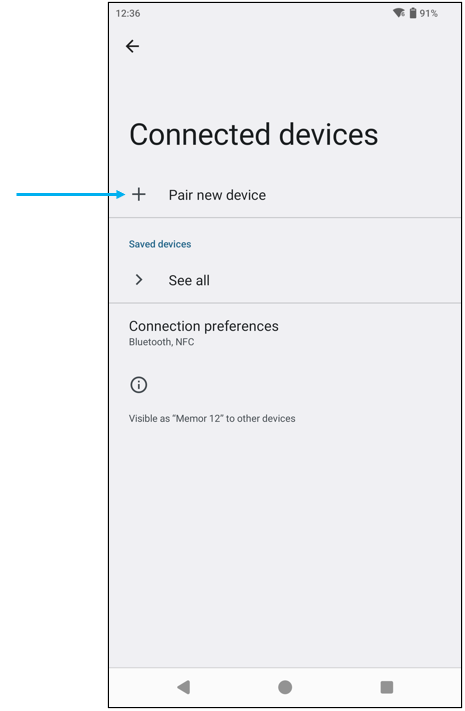
Figure 9: PaladinGo/Pair new device
- In the list of available devices, find and select the device name listed on the screen of the Link/2500 (Figure 8).
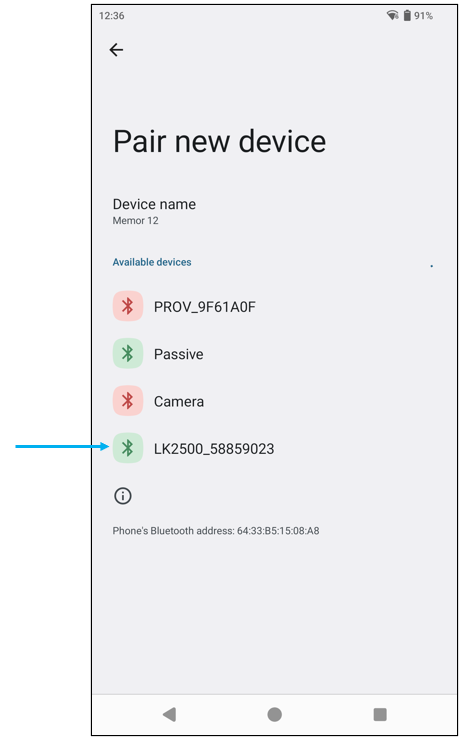
Figure 10: Device name
- A window will appear with a Bluetooth pairing code, which should match the code now on the screen of the Link/2500.

Figure11: Pairing code
- Select Pair on the PaladinGo device, and press the green confirm button on the Link/2500. The order here does not matter.
- Press the red cancel button on the Link/2500 until you are returned to the triPOS home screen (note the Bluetooth icon in the top right corner).
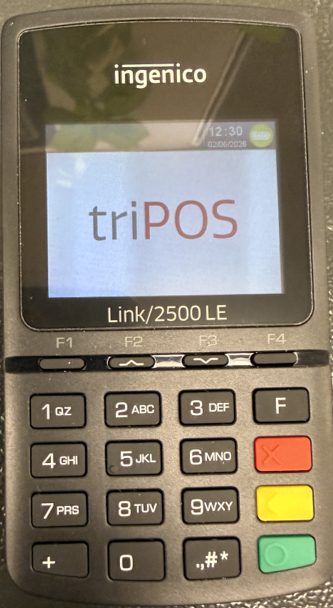
Figure 12: triPOS screen
The triPOS Link/2500 LE credit card device is now paired via Bluetooth to the PaladinGo device. This is how Paladin communicates with the device. No network connection or activation code is involved.
Perform the following to pair the Link/2500 to a PaladinGo device:
- With the Link/2500 now paired via Bluetooth to the PaladinGo device, launch PaladinGo.
- In PaladinGo, navigate to Settings.
- In Settings, Select TriPOS as the Payment Processor.
- You will see a dropdown appear titled Bluetooth CC Device. Select this and choose the previously paired Link/2500 credit card device.
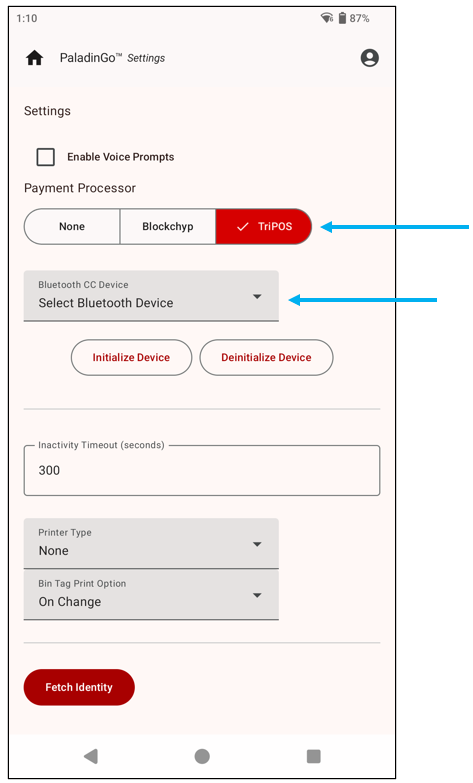
Figure 13: Settings/triPOS
- With the Link/2500 device name now populating the dropdown, scroll down and select Save. Select Ok in the confirmation window.
- With the settings now saved, select Initialize.
Note: The Link/2500 LE credit card device will go to sleep after 2 minutes of inactivity by default, so ensure the device has not fallen asleep before initializing. Press the green confirm button to wake the device back up. KBA ID: XXXXX (KBA ID of the timeout settings instructions)
- A window will appear warning to not close the app or navigate away.

Figure 14: Initialize screen
- Once the Initialization process is complete, select Ok on the confirmation window.
- The Link/2500 LE credit card device should now say PaladinGo on the home screen.
The Link/2500 LE credit card device is now ready for credit card transactions. Select Credit Card in the Checkout screen of PaladinGo to prompt the credit card device for payment.
Note: If a user wants to use the Link/2500 credit card device on both an Android and iOS device, it will have to be re-initialized in PaladinGo for the respective platform.
If you have questions or suggestions about this information, contact support@paladinpos.com.
