
Receive Purchase Order lets you receive all or a certain number of items on a PO.
When the Receive PO module opens, all available suppliers are listed.
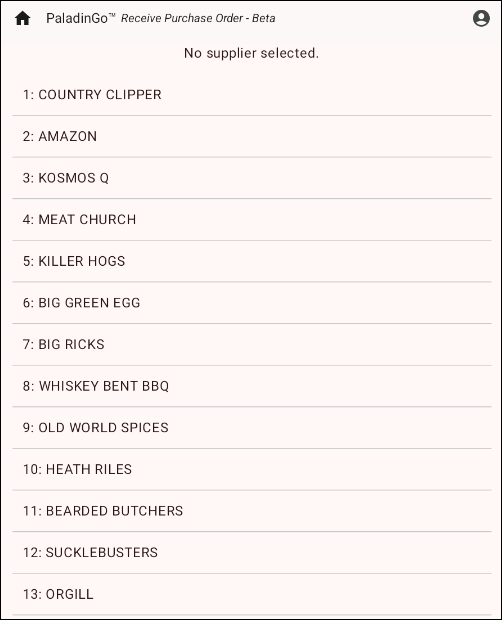
Figure 1: Available Suppliers
- From the supplier list, tap the supplier you want to receive items from.
- On the bottom of the module, use either the UPC icon to scan an item, the Magnifying Glass to search for an item, or entering the part number.

Figure 2: Bottom of module/find item options
The supplier with the item opens, showing how many of the item is On Order, how many of the items are Already received, and you can Enter the amount receiving. You can also tap Remove to close the receiving event.
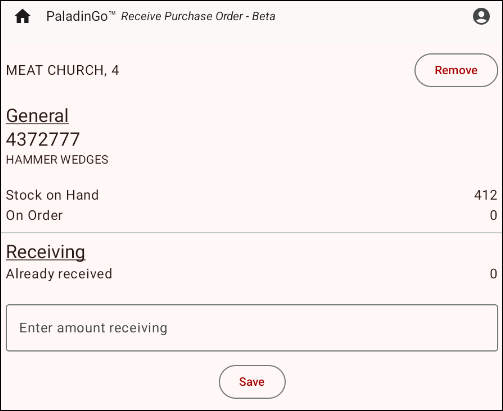
Figure 3: Receiving info
When done entering an amount to receive, tap Save. You can now finalize receiving in Paladin.
- In Paladin, select the PO module.
- On the bottom ribbon of the module, toggle F5 Mode PO to F5 Mode Receive.
- Press F6 Find PO.
The Find PO window opens.
- In the PO Details pane, enable Open POs.
- In the Matching Purchase Orders pane, highlight the PO and press F12 Open.
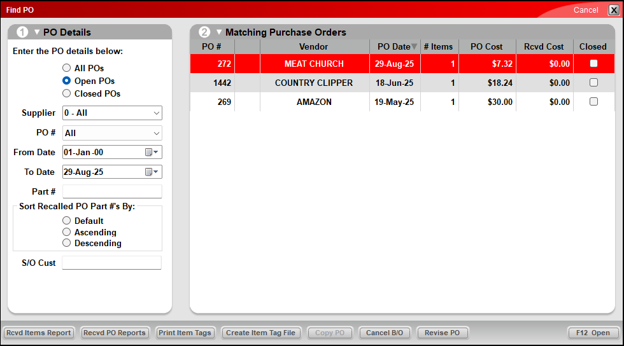
Figure 4: Find PO window
The RF PO Receiving window opens.
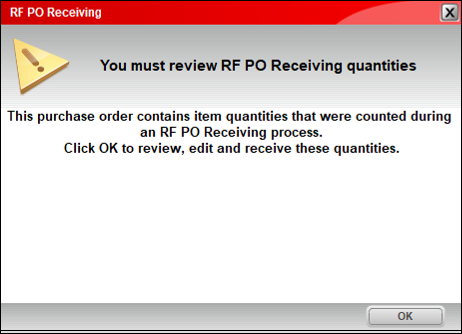
Figure 5: RF PO Receiving message
- Click OK.
The Apply Freight Cost window opens.
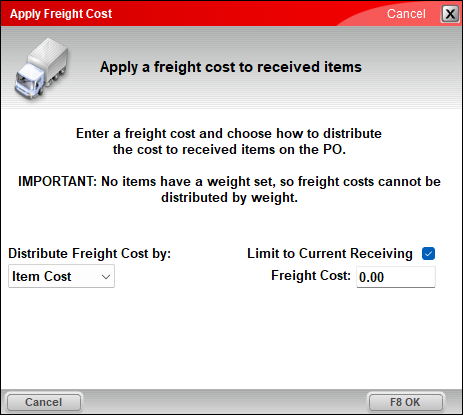
Figure 6: Apply Freight Cost window
- Apply any freight costs and press F8 OK.
The PO is now received, and in PaladinGo, the receive purchase order shows 0 for On Order.
If you have questions or suggestions about this information, contact support@paladinpos.com.
