
The Purchase Order module lets you to create a purchase order (PO).
To create a PO:
- On the bottom of the module, use either the UPC icon to scan an item, the Magnifying Glass to search for an item, or enter the part number.

Figure 1: Bottom of module/find item options
Information on the item appears on the module.
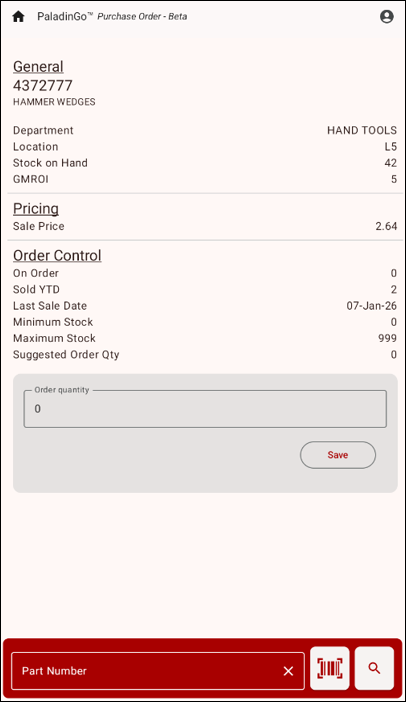
Figure 2: PO part
- In the Order quantity box, enter the number of item to add to the PO.
- Tap Save.
Recalling the PO and finalizing/editing the amount of items in the transaction is done is Paladin.
- In Paladin, select the PO module.
- On the bottom ribbon of the module, select F6 Recall PO.
The Recall PO window opens.
- On the top of the Recall PO window, enable POs.
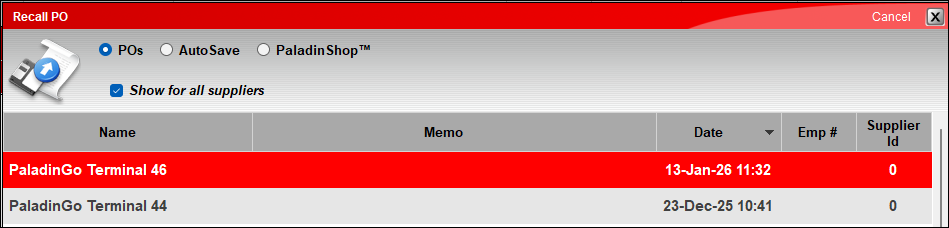
Figure 3: Recall PO window
- Highlight the PO, and on the bottom ribbon of the window, press F12 Recall.
- In the PO that opens.
- If necessary, updating the quantity can be done.
- Press F8 Confirm PO to process the PO.
If you have questions or suggestions about this information, contact support@paladinpos.com.
*Content is subject to change. For the most recent version, visit the Help Portal.
Printed on: 1/22/26
