
The Inventory module allows you to lookup and see the inventory status of an item.
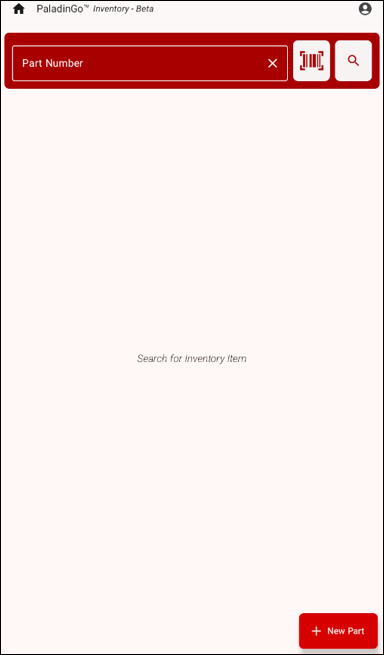
Figure 1: Inventory module
On the top of the module, using either the UPC icon to scan an item, the Magnifying Glass to search for an item, or by entering the part number, the information on the item appears on the page.
The following values are shown for the item:
- Stock On Hand
- Sales
- Financial
- Cost & Prices
- Forecast
- Stock Check
In the Sales pane, a graph is provided showing the sales of the item over a 12 month time period.

Figure 2: Inventory details
Clicking on the Magnifying Glass next to each value opens a pane showing the details of that value. For example, Figure 3 shows the values for Sales of the item.
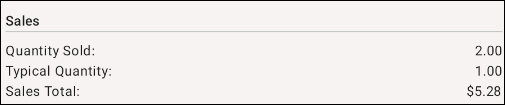
Figure 3: Sales pane
Clicking on Additional Details opens a pane providing an image and rich description of the item, if available.
Clicking on New Part opens the Create New Part pane where information on that part can be populated.
Note: Other than an Alt Part Number, all fields are required.

Figure 4: Create New Part pane
When all required fields are complete, tap Create.
The part created can be brought up in Paladin in the Inventory module > Advanced Lookup.
If you have questions or suggestions about this information, contact support@paladinpos.com.
