
The PaladinGo™ Delivery module provides the following functionality:
- View and manage deliveries that were scheduled in Paladin.
- Enter notes and take pictures with the mobile device.
- Accept signatures.
- Modify delivery quantities (reduce quantity only) for automatic crediting in a new invoice.
- View real-time delivery status, as well as notes and pictures, on a Paladin terminal in your store.
It is important to note that deliveries are made in Paladin and paid for in Paladin prior to delivery. PaladinGo only provides the functions outlined in the above bulleted list, but is responsible for finalizing the transaction after a signature is collected.
For information and instruction on setting up deliveries, refer to the Deliveries KBA.
This article provides information and instruction on the following:
Navigating PaladinGo Delivery
The PaladinGo Delivery module is opened by tapping Delivery in the PaladinGo Dashboard.
The default page of the module has the following:
- Filter by Truck list
- Date picker
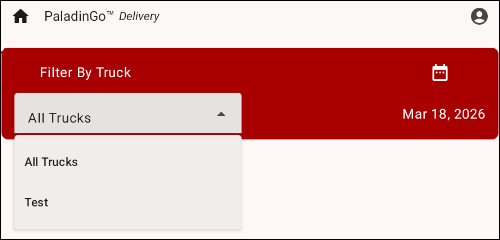
Figure 1: PaladinGo Delivery module
To open a delivery:
- Select a truck from the Filter by Truck list.
- Tap on the calendar icon and select a date.
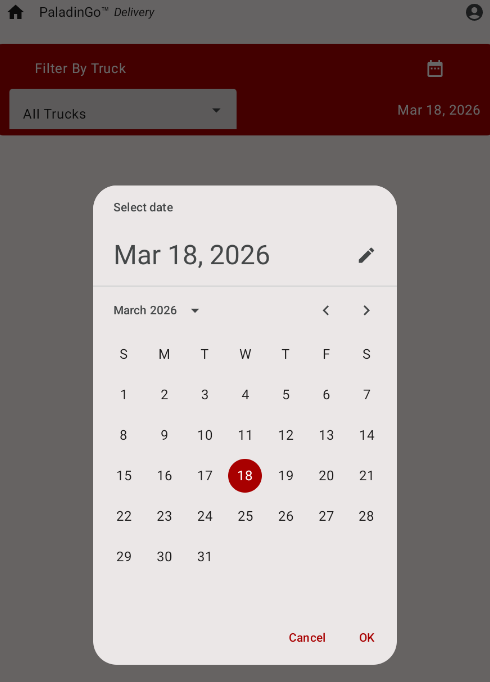
Figure 2: Date picker
- Tap OK.
The Delivery page opens with all deliveries scheduled for the given date chosen.
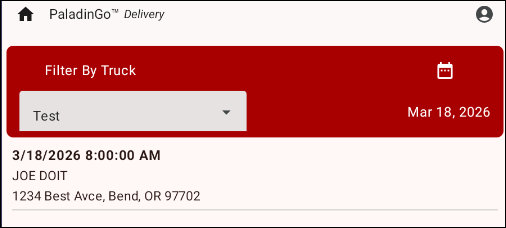
Figure 3: Deliveries scheduled per day
- Tap on the delivery you want to view.
The Delivery page opens with details on the items out for delivery.
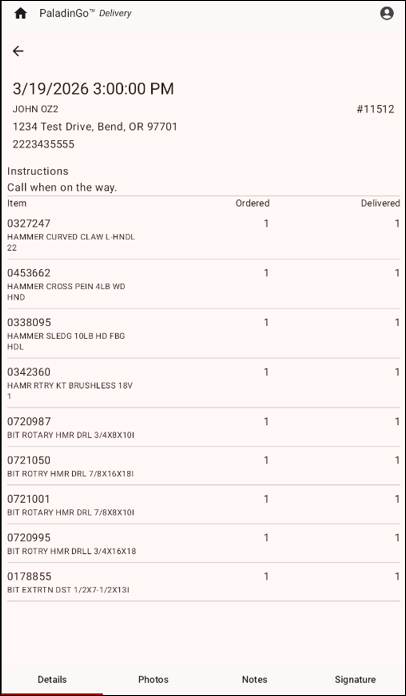
Figure 4: Delivery details
Delivery Details
The Delivery details page provides the following functions:
These functions are accessed by tapping corresponding tabs on the bottom of the page.

Figure 5: Delivery tabs
Details on delivery
For delivery details, tap the Details tab.
The Details tab shows the following:
- Customer info: Name, address, phone number
- Instructions provided when delivery was set; for example, to call when delivery is on the way to the location.
- Info on what is being delivered: Item, Qty ordered, Qty delivered
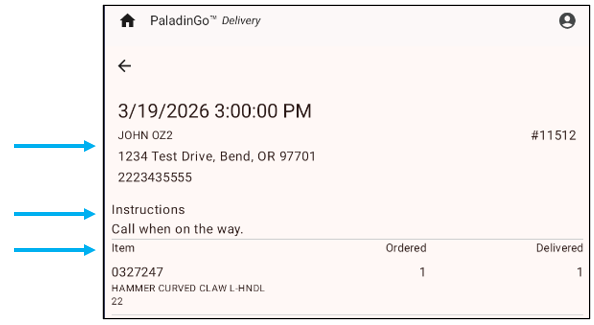
Figure 6: Details page
Photos
For attaching and viewing photos, tap the Photos tab.
On the bottom of the page, there are the options to Select a photo or Take a picture.
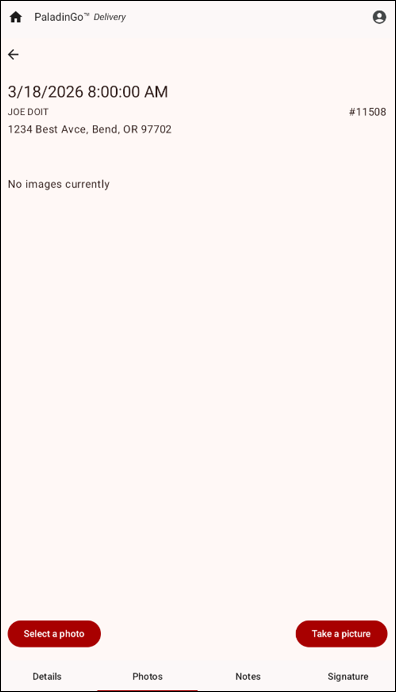
Figure 7: Photos page
After selecting either option, the picture is available in the module.

Figure 8: Photo of product
Notes
Notes can be added to the delivery. This is most useful when fewer items can be delivered than what was ordered.
To add a note:
- Tap on Notes on the bottom of the page.
The Notes page opens.
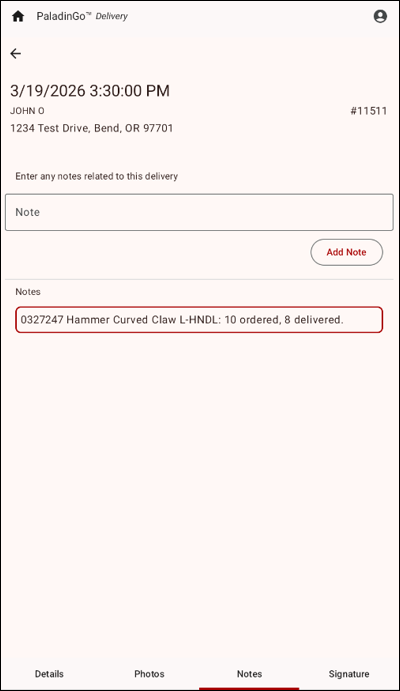
Figure 9: Notes
- In the Enter any notes related to this delivery box, enter the note.
- Tap Add Note.
The note is shown in the Notes box and will be shown on the invoice when delivery is complete.
Signature
Signing for the delivery closes the delivery in PaladinGo, and an invoice can be printed from Paladin.
To sign for the delivery:
- Tap Signature at the bottom of the page.
The signature page opens.
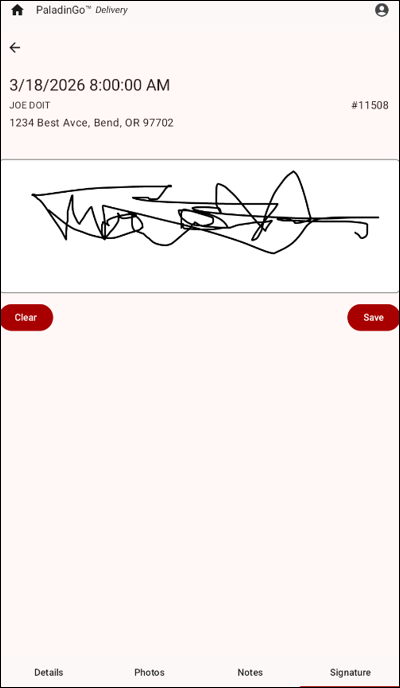
Figure 10: Signature
- Tap Clear if you are not ready to complete the delivery or want the signature changed.
- Tap Save.
The Delivery alert window opens stating that the Delivery processed successfully.
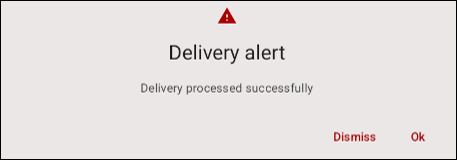
Figure 11: Delivery confirmation
- If you do not want to finalize the delivery, tap Dismiss to
- Tap Ok to close the delivery in PaladinGo.
Enter item quantity
Item quantity can be edited, but only as a subtraction. Adding item quantity is not available.
To edit item quantity:
- In the delivery details page, tap on an item.
The Edit Item window opens at the bottom of the page.
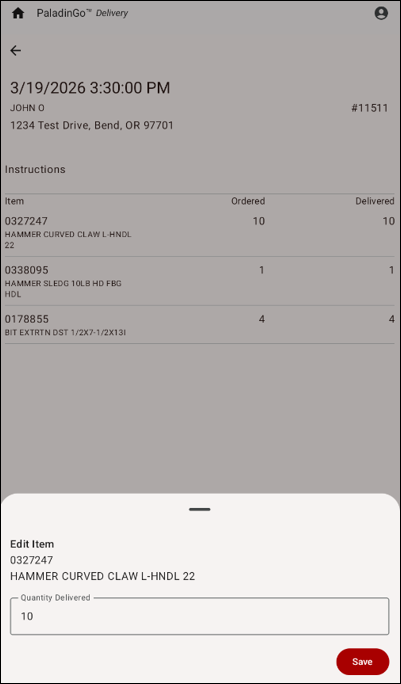
Figure 12: Edit Item
- Adjust quantity in the Quantity Delivered box. Again, only subtraction can be performed.
The change is reflected in the Details page and on the invoice in Paladin.
Note: If addition of an item is tried, the Delivery alert window opens stating Failed to process delivery.
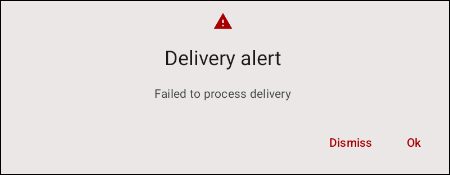
Figure 13: Delivery alert
If you have questions or suggestions about this information, contact support@paladinpos.com.
