
When in Paladin’s Invoice/Quote module, and right-click on an item, the following menu opens:
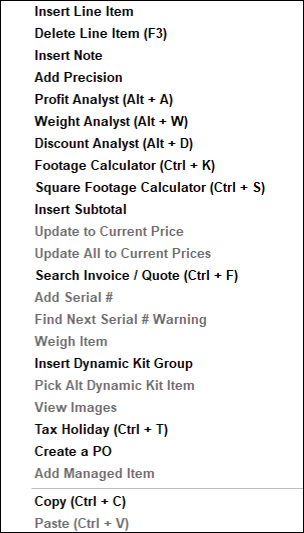
Figure 1: Invoice/Quote menu
Available when working with a managed order, the Add Managed Item option becomes available. Items can be added to a managed order by right-clicking on an item(s) added below the Items below this line are not part of the managed order note. This moves the added item(s) to above the note with a quote quantity equal to the quantity that had already been input for that line to be sold.
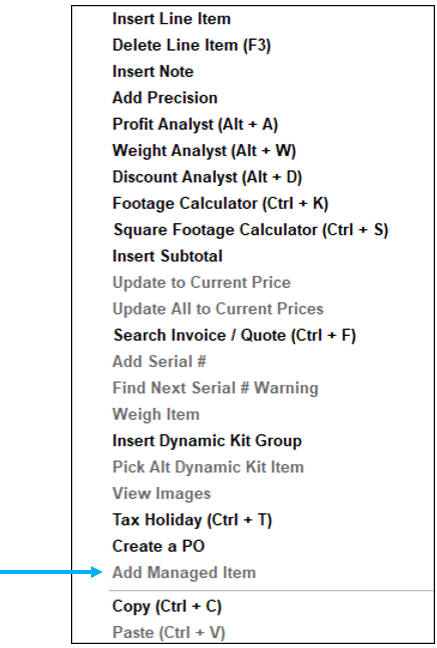
Figure 2: Add Managed Item selection option
Available when working on a managed order, the Edit Quote Qty option becomes available. When, in Paladin Configuration’s Invoice (Store) tab, if Automatically Put Items ON HOLD When In Order Manager is NOT enabled, items an a managed order can have their quoted quantity modified via the right-click menu. This prompts the user to input a new quantity, greater than the amount already sold, or reduce the quoted quantity to equal the amount sold (or 0). Users will also be able to use F3 Delete to remove an item from the order.
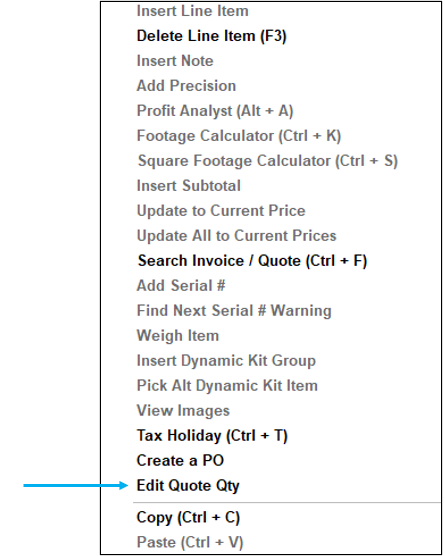
Figure 3: Edit Quote Qty option
The following provides the function of each menu item:
|
Select this menu option |
To do this |
|
Insert Line Item |
Insert a blank line item above the selected line item. Benefit: Insert a line-item anywhere in the invoice. |
|
Delete Line Item (F3) |
Delete the selected line item. Benefit: With this menu option, you have a third way to delete a line item. You can also click F3 Delete Item on the bottom ribbon of the module. |
|
Insert Note |
Insert a blank note above the selected item. Benefit: Insert a note anywhere in the invoice. |
|
Add Precision |
Add a more precise line item quantity (up to four decimal places) and price (up to six decimal places) in the Add Precision window. Benefit: Provide high precision values for items that do not come in whole quantities, such as grains, seed, and gravel. In the Add Precision window, you can enter changes to Quantity and Price. When you do so, the calculated real-time Extension value appears. Click Update to apply this value to the invoice item. |
|
Profit Analyst (Alt + A) |
View the real-time cost, profit, and margin statistics for the selected line item and total invoice in the Profit Analyst window. Note: This feature is only available to employees who have been explicitly granted access. Benefit: This tool gives you real-time cost, profit, and margin statistics. |
|
Weight Analyst (Alt + W) |
View the real-time item, unit, and weight statistics for the selected line item and total invoice in the Weight Analyst window. Benefit: This tool gives you real-time item, unit, and weight statistics. |
|
Discount Analyst |
Discount Analyst lets you view part numbers, the pricing plan if one is set, and the reason for the discount. |
|
Footage Calculator (Ctrl + K) |
Open the Footage Calculator (tally calculator) to specify quantities and lengths (feet and inches) for items. Benefit: This tool is useful when you sell in different lengths, such as lumber, wire, and rolled metal roofing. |
|
Square Footage Calculator (Ctrl + S) |
Open the Square Footage Calculator (tally calculator) to specify quantities and lengths and widths (feet and inches) for items. Benefit: This tool is useful when you sell items by the square foot, such as flooring. |
|
Insert Subtotal |
Insert a subtotal above the line item. The subtotal is calculated from the previous subtotal. If no prior subtotal exists, the subtotal is calculated from the start of the invoice. Benefit: Automatically calculate a subtotal for items, and enter a Subtotal Name, such as Paint supplies. When you add or remove items, the subtotal is automatically adjusted. |
|
Update to Current Price |
Note: You must recall a transaction for this option to be active. For regular transactions, the option is grayed out. Update the selected line item price on a recalled quote to the current retail price. Tip: If the quote price is different from the current retail price, the per unit price appears in blue text. Benefit: If a price change occurred, the retail price is automatically updated. |
|
Update All to Current Prices |
Note: You must recall a transaction for this option to be active. For regular transactions, the option is grayed out. Update all prices on a recalled quote to current retail prices. Benefit: If a price change occurred, the retail prices are automatically updated. |
|
Search Invoice / Quote (Ctrl +F)
|
Search for a part number, description, or note on an invoice using a keyword or phrase. Benefit: Quickly locate items or notes on long invoices. |
|
Add Serial # |
Opens the Add/Remove Serial Numbers window so you can select the serial numbers on serialized items. Benefit: Get quick access to all recorded serial numbers for an item. |
|
Find Next Serial # Warning |
Moves to the next invoice item that needs serial numbers. Benefit: Easily find all items that require serial number selection on an invoice. |
|
Weigh Item |
Opens the Weigh Item window to weigh an item on a supported scale. |
|
Insert Dynamic Kit Group |
N/A Internal use only. |
|
View Images |
Opens an item’s image. This is only active when Supplier Inventory Images and/or Store’s Inventory Images are selected in the Remote Data Access pane of Paladin Configuration’s Remote Access tab. |
|
Tax Holiday (Ctrl + T) |
The Tax Holiday feature allows stores to easily apply discounts at checkout and track the tax holiday amounts using the Comparative Revenue Report and the Sale Tax Details Report. The amount of the sales tax to apply is done in the Apply Tax Holiday window that opens when you select Tax Holiday (Ctrl + T). |
|
Create PO |
Purchase orders (POs) can be created from an invoice/quote and be stored for review. For every selected item in the invoice/quote, a PO is created for each unique supplier. |
|
Add Managed Item |
Available when working with a managed order, the Add Managed Item option becomes available. Items can be added to a managed order by right-clicking on an item(s) added below the Items below this line are not part of the managed order note. This moves the added item(s) to above the note with a quote quantity equal to the quantity that had already been input for that line to be sold. |
|
Edit Quote Qty |
Available when working on a managed order, the Edit Quote Qty option becomes available. When, in Paladin Configuration’s Invoice (Store) tab, if Automatically Put Items ON HOLD When In Order Manager is NOT enabled, items an a managed order can have their quoted quantity modified via the right-click menu. This prompts the user to input a new quantity, greater than the amount already sold, or reduce the quoted quantity to equal the amount sold (or 0). |
|
Copy (Ctrl + C) and paste |
You can copy editable information in these quick-access menus:
Benefit: Copy notes or other editable values within the invoice. Note: You can press Ctrl + C instead of selecting Copy. |
|
Paste (Ctrl + V) |
You can paste editable information in these quick-access menus:
Benefit: Paste notes or other editable values within the invoice. Note: You can press Ctrl + V instead of selecting Paste. |
If you have questions or suggestions about this information, contact support@paladinpos.com.
