
Paladin offers the option to hide PaladinShop™ departments, classes, and sub-classes. The following sections provide instruction on enabling the option:
Note: In the PaladinShop tab, pressing Refresh Data will open a message window asking if the Dept, Classes, and Subclasses are configured correctly.
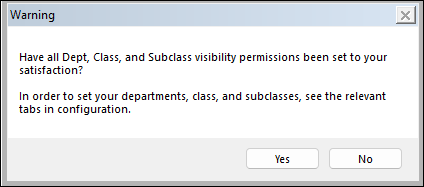
Figure 1: Dept, Classes, and Subclasses are configured correctly
Departments
Note: Setting Hide in PaladinShop is only visible in the Departments tab if Enable is checked in the PaladinShop pane of the PaladinShop tab in Paladin Configuration.
To set this:
- In Paladin, from the main menu, select File > Setup.
- Select the Dept tab.
- In the Departments pane, select a department.
- In the main field, check Hide in PaladinShop.
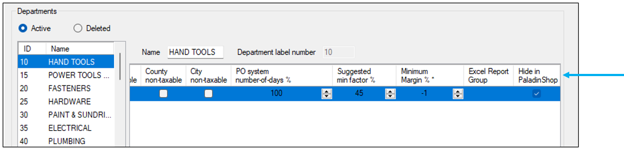
Figure 2: Departments/Hide in PaladinShop
Classes
Whether a department has or has not been set with Hide in PaladinShop, classes and sub classes may be set to Hide in PaladinShop.
To set this:
- In Paladin, from the main menu, select File > Setup.
- Select the Class tab.
- In the field under Active, select a class.
- Under the Default Dept. list, check Hide in PaladinShop.
- Click Save, then click Close.
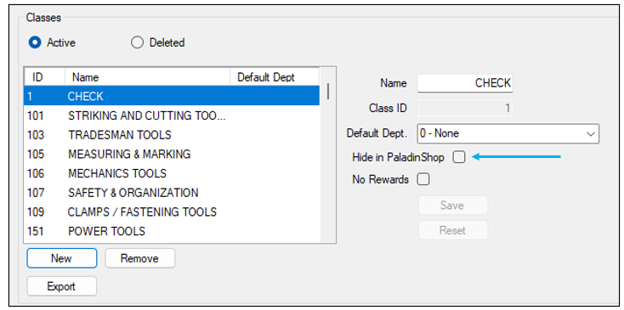
Figure 3: Classes/Hide in PaladinShop
Sub classes
If only sub classes need to be excluded, Hide in PaladinShop can be set.
To set this:
- In Paladin, from the main menu, select File > Setup.
- Select the Class tab.
- In the field under Active, select a sub class.
- In the Sub Classes pane, check Hide in PaladinShop.
- Click Save, then click Close.
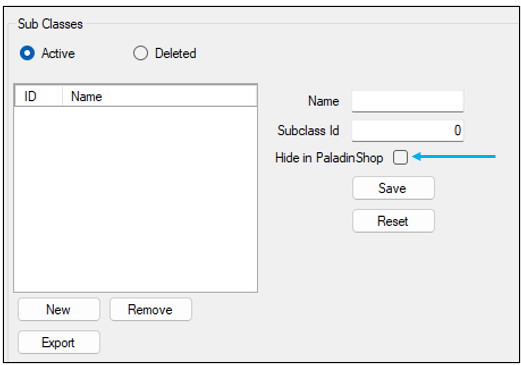
Figure 4: Sub Classes/Hide in PaladinShop
Individual Items
Individual items can be hidden in the store’s PaladinShop site. This is done by:
- In Paladin, from the top ribbon, select the Inventory tab.
The Significant New Feature Announcement window opens. This window lets you know that your PaladinShop is ready/set up and provides links to a video, webinar, and Paladin’s Knowledge Base article providing information and instruction on enabling and optimizing your PaladinShop.
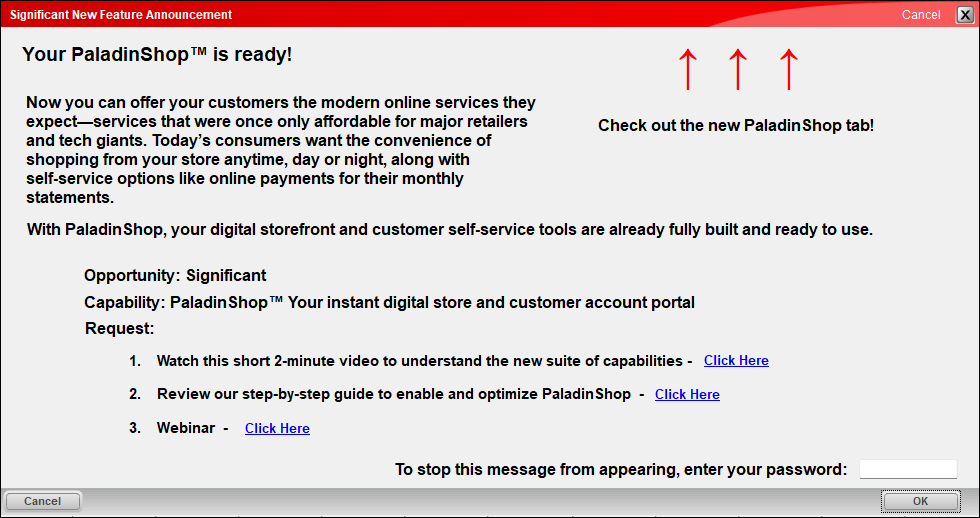
Figure 5: Significant New Feature Announcement window
- When ready, select the PaladinShop tab. The Powered by PaladinAI pane opens.
Item Visibility provides visual information on Department, Class, Subclass, Not Kit Trigger, and PaladinShop visibility. Note: A green checkmark next to each indicates that these are not set as Hide in PaladinShop as shown in the previous sections of this article.
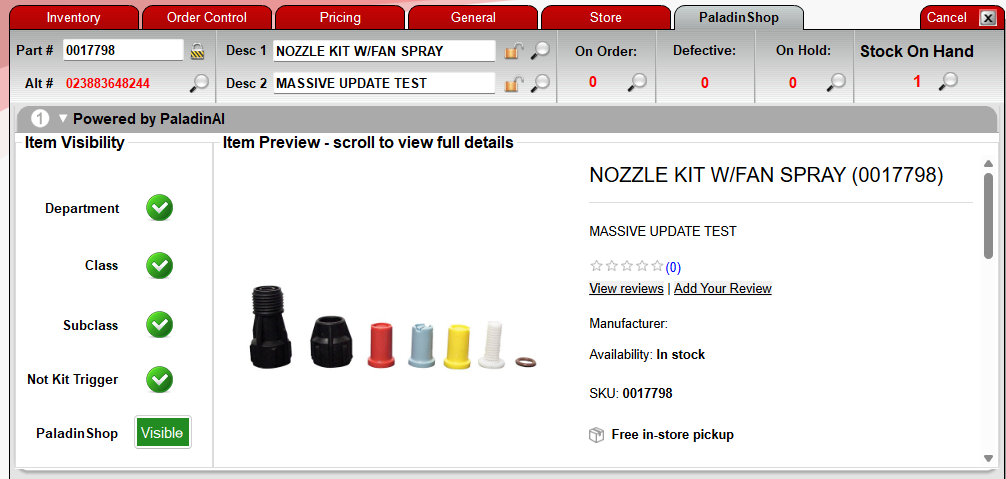
Figure 6: Item Visibility
If you want the part to not be included in PaladinShop, click the green button next to PaladinShop to toggle it to Hidden.
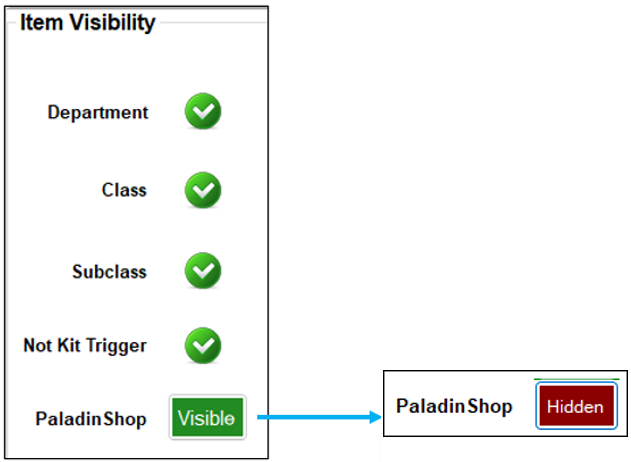
Picture 7: PaladinShop Visible/Hidden option
Note: If an item is part of a kit in Paladin, Not Kit Trigger will be a red X, and PaladinShop visibility needs to be Hidden.
- After assigning PaladinShop visibility, on the bottom ribbon of the module, click F12 Save.
If you have questions or suggestions about this information, contact support@paladinpos.com.
