
FastQuery acts as an AI copilot for store employees, giving them instant access to the store’s entire inventory and related product information.
- Benefits:
- Speeds up customer service by allowing staff to quickly find product details, availability, and location.
- Helps new hires perform at the level of experienced staff by providing instant, AI‑driven answers.
- Streamlines store operations and improves team productivity.
Setup in Paladin
Clients need to first sign up for FastQuery and completed the FastQuery onboarding process at FastQuery AI – AI Copilot for Independent Hardware Retailers.
The process begins with an AI guided questionnaire asking the user about their job position, experience, hours worked, expertise, etc. The user is taken to the Fast Query launchpad to log in to the FastQuery portal and retrieve their integration credentials.
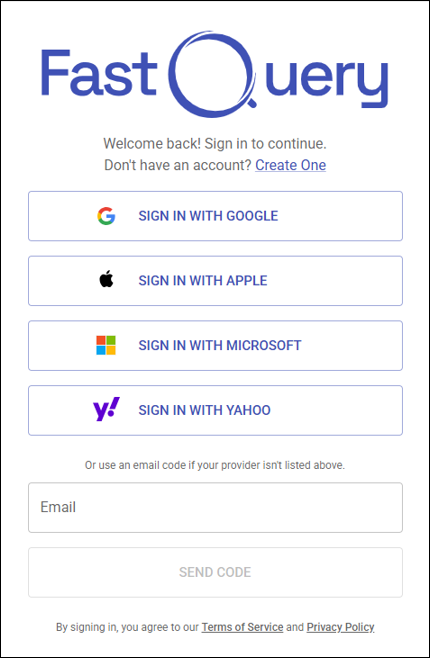
Figure 1: FastQuery launchpad
All of the credential info is accessed on the client’s Fast Query’s website via the Integrations option in the side menu bar and selecting Paladin in the list of integrations.
Note: The Activity pane, at this point, shows set up as complete and waiting for the store’s inventory to be loaded.
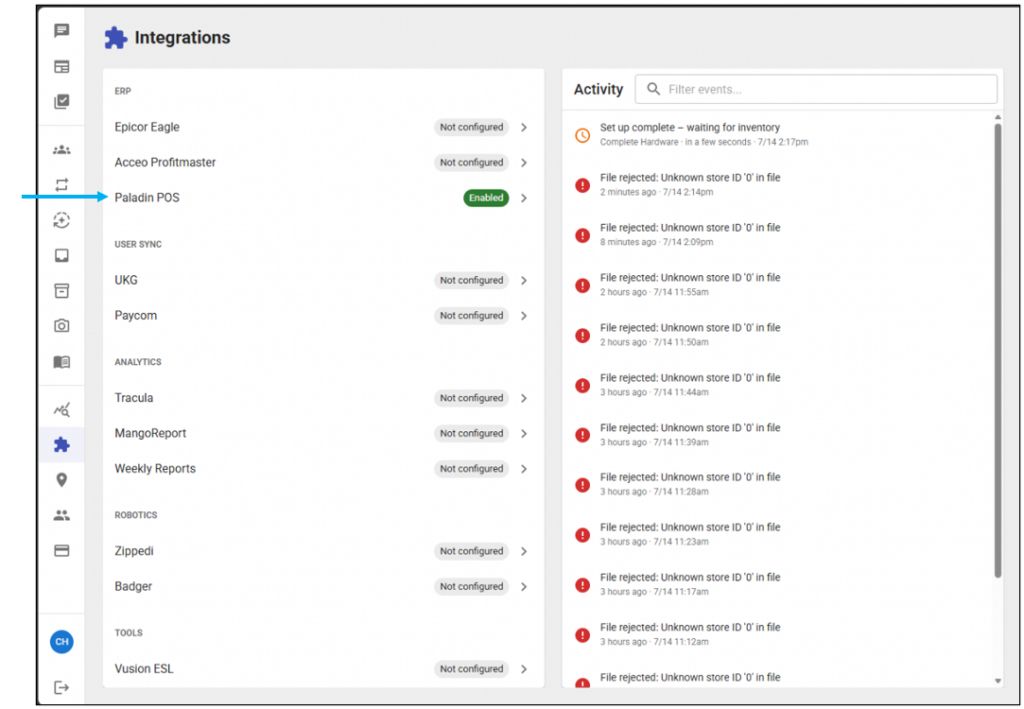
Figure 2: FastQuery website/Integrations launchpad
The Username is generated on Fast Query’s website after the user creates a custom FTP password. The FTP Path is also listed here.
Note: The Activity pane within Paladin POS integration shows No events yet and will populate as inventory is uploaded.
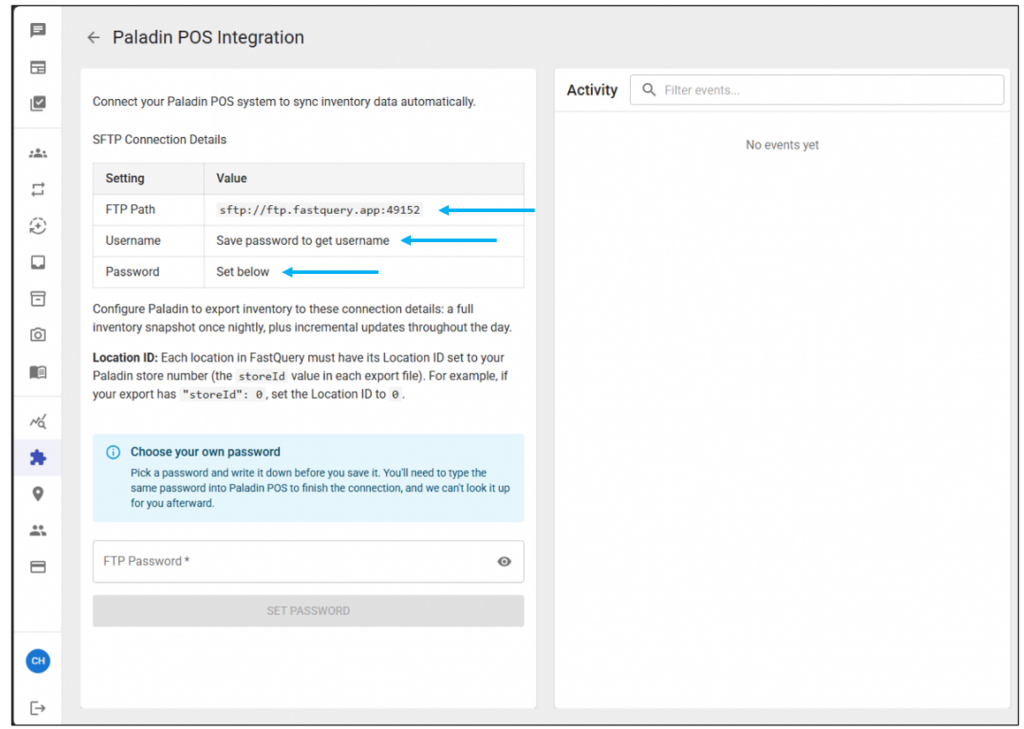
Figure 3: Paladin POS Integration/Credentials
Once the credentials have been obtained and the app setup on their PC, the client will need to contact Paladin Support. A Paladin Support will enter the client’s credentials in Paladin.
Once set up in Paladin, Stock on Hand updates transmit every 5 minutes; and overnight, Paladin will do a full inventory upload.
If you have questions or suggestions about this information, contact support@paladinpos.com.