
In order to participate in the Ace instore gift card mall program, Ace stores need to sign up for the Ace gift card program plus the InComm in-store gift card mall program.
This article provides information and instruction on the following:
- Getting started
- How the program works
- Guidelines for filling out the Retailer Participation Agreement
- Guidelines for filling out the ACH Agreement
- Considerations to note
- Paladin setup
- Activate/Deactivate InComm gift cards
Getting started
Enrollment is open throughout the year; so, stores can sign up for the program at any time. The InComm team will provide the timeline for when the program can be launched, including receiving the display and gift cards and when the merchandiser will come set up the display.
To begin selling other merchants’ gift cards:
- Complete the InComm Prepaid Agreement found here.
- Complete the Ace Hardware Third-Party Products Program Participation Agreement found here (provide the store number in the agreement).
- Complete the Anti-Money Laundering Compliance Agreement found here and then review the Anti-Money Laundering: what You Need to Know training course on Ace Learning Place.
Note: The training must be reviewed by everyone participating in the program. Retailers must be signed into Ace Learning Place for the link to work. If you are not signed in, click the link, sign, then click the link again to go directly to the course page.
Multi-stores can complete each of the agreements once for the legal entity involved. If more than 12 stores in the multi-store, send a spreadsheet of participating store numbers to GiftCardL2@acehardware.com
How the program works
The initial assortment from InComm includes 10 gift cards from 70 different non-Ace merchants and a 72-peg spinner rack. Two pegs on the spinner rack are reserved for Ace gift cards, which can be ordered from the store’s RSC or taken from existing inventory.
There is no cost for the program, which includes the free spinner rack.
Note: The non-Ace gift card inventory will be shipped separately from the spinner rack at no charge.
When stores activate non-Ace gift cards, they earn commission percentages based on the amount of the activation.
Note: For VISA activation, stores will receive a portion of the service fee.
Only national merchant brand gift cards are available through the program. The assortment is reviewed by Ace and InComm twice each year (Spring and Fall).
InComm runs a weekly report (on Mondays), and if a store’s inventory on hand is 6, InComm will automatically ship inventory. If a merchant gift card is needed faster, email acegiftcardsupport@incomm.com or call 800.698.1241.
- ADW report R-Gift-R008 is available to review detail on earned commission.
- Gift Card Mall invoice will be on the store’s bi-monthly statement.
- The funds that were activated due to Ace Hardware Corporation/InComm
- Credits for commission.
Example:
Invoice for Starbucks $40 qty of 5 for $40.00 = $200
Credit for commission 4.8% is $1.92 x 5 =$9.60
Guidelines for filling out the Retailer Participation Agreement
The following are the guidelines:
- One store number per box
- No warehouse codes
- If more than 10 stores, an additional form needs to be filled out
Guidelines for filling out the ACH Agreement
The following guidelines are:
- One store number per box
- No warehouse codes
- If more than 10 stores, an additional form needs to be filled out
- All routing numbers need to be 9 digits, no spaces, no special characters, no letters
- Account numbers can only be numeric and cannot have any special characters, no spaces, no letters
Considerations to note
The following need consideration:
- Validate all information before setting up in order to avoid delay in the setup process
- It can take up to 3 weeks to set up.
Paladin setup
To set up InComm as a gift card processor:
- In Paladin, from the main menu, select File > Setup.
- Select the Credit Card tab.
- In the Gift Cards pane, check InComm Gift Card Activation.
- In the InComm Gift Card Class Number box, enter the class created in Paladin.
- In the InComm Gift Card Reload Class Number box, enter the reload class created in Paladin.
- In the InComm Client ID box, enter the unique identifier assigned by InComm. This is used to identify your company when initiating transactions.
- In the InComm Client Secret box, enter the private, secure string assigned by InComm, used alongside the Client ID to authenticate your system. Keep this value confidential.
- In the InComm Access ID box, enter the identifier assigned by InComm at the start of the integration project.
- In the InComm Retailer Name box, enter the name InComm assigned to your store or retail outlet.
- In the InComm Timeout Threshold box, enter the amount of time (in seconds) the system will wait for a response from InComm before automatically canceling a transaction. The default value is 25 seconds.
- Test is for Paladin to internally test the functionality set up.
- Click Save, then click Close.
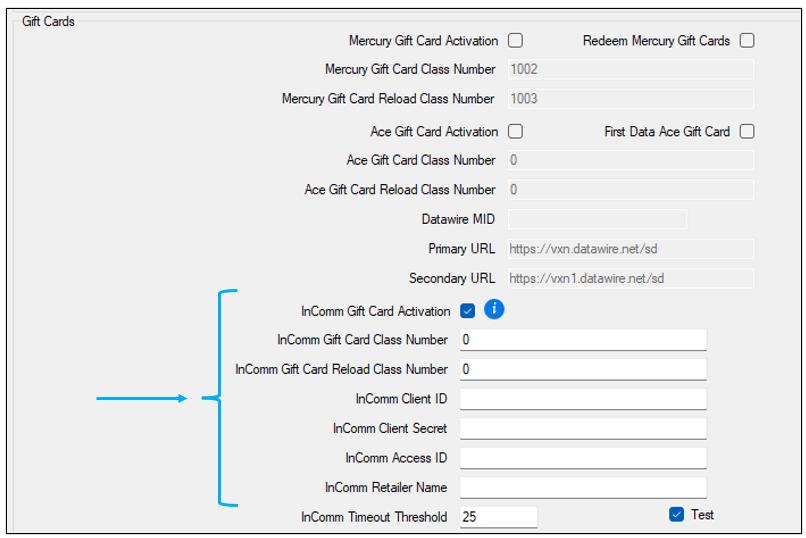
Figure 1: InComm Git Card setup
Activate/Deactivate InComm gift cards
To activate InComm gift cards
- In Paladin, select the Invoice/Quote module.
- Scan the barcode of the card. This populates the Part Number box.
- On the bottom ribbon of the Invoice/Quote tab, press F8 Checkout.
- On the bottom ribbon of the Checkout tab, select payment type (F1 Cash, F3 Credit Card, F4 Check).
- In the associated payment type field, enter the amount to be loaded onto the gift card.
Note: Card vendors allow amount to be loaded in two ways:
- Variable: There is an amount range; The gift card has the suffix ex: (25$-500$)

Figure 2: Gift card variable amount range
- Fixed: Gift card is restricted to a fixed amount.

Figure 3: Gift card fixed amount
The Gift Card Processing window opens showing that the gift card activation has been authorized along with the amount authorized.
Note: If activation for a card fails:
- Cancel entire invoice (cancels/reverses any activations or deactivations that occurred up to this point)
- Retry activation for card (repeatable if continues to fail)
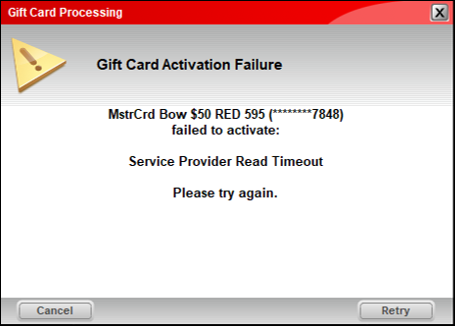
Figure 2: Gift Card activation Failure message

Figure 3: Gift Card Processing window/Gift Card activated
- Click Next to print a receipt.
The receipt shows that the card has been ACTIVATED along with the amount activated, the activation fee (ACT.FEE), and any applicable tax on the purchase.
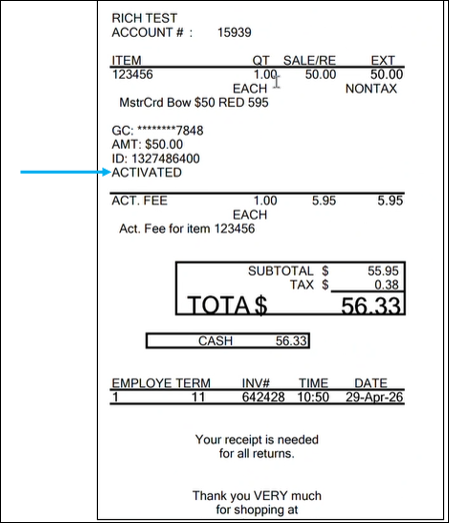
Figure 4: Receipt showing card activated
To deactivate InComm gift cards
Note: InComm gift cards can only be deactivated/refunded if the card has not been used and the total is that of the original gift card activation.
- In Paladin, select the Invoice/Quote module.
- Scan the barcode of the card. This populates the Part Number box.
- On the bottom ribbon of the Invoice/Quote tab, press F8 Checkout.
- On the bottom ribbon of the Checkout tab, select payment type (F1 Cash, F3 Credit Card, F4 Check).
- In the associated payment type field, enter the amount to be deactivated/refunded as a negative amount.
Note: If a credit card was used as form of payment, the amount will be credited back to the card used.
The Gift Card Processing window opens showing that the gift card has been deactivated.
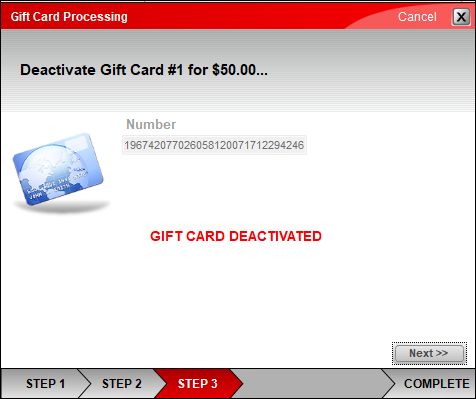
Figure 5: Gift Card Processing window/Gift Card deactivated
- Click Next to print a receipt.
The receipt shows that the card has been DEACTIVATED along with the amount deactivated, the activation fee (ACT.FEE) returned, and any applicable tax refunded on the purchase.

Figure 6: Receipt showing card deactivated
If you have questions or suggestions about this information, contact support@paladinpos.com.
