
Overview
Ace’s Honoring Online Promotions Everywhere (HOPE) initiative is a project whose goal is to automate rebates for Ace’s basic dollar-off or percent-off sales. To support this project, Paladin has added support to receive rebate information via existing Ace promo hotsheets, and Paladin will include this rebate information when sending invoice information to Ace via Rewards upload. Stores must be configured to run HotSheets (Ace Rewards and Ace Direct Uploads must be enabled) to support this feature. No additional setup is required for stores to access this feature.
Note: For specific requirements, refer to the Ace: Honoring Online Promotions Everywhere (HOPE) Requirements KBA.
Impacted Systems
The following systems are known to be impacted by this change:
- Paladin Service
- Invoice/Quote – Checkout
- Invoice Saving
- Ace HotSheets – Promotions
Paladin Service does the processing of HotSheets and uploading of sales data. Rebate information is saved to an invoice item whenever an invoice with a qualifying part completes. Ace promo HotSheets are the mechanism in which rebate information is received.
HotSheet Processing
Rebate information for sales can be processed by Paladin via promo HotSheets (must be TYPE_CD ‘P’ or ‘C’). The data in a promo HotSheet that is relevant to HOPE is the following:
- PROMOID: Ace’s unique Identifier for the given promotion.
- STK_NUM: The part number for the given promotion.
- REBATE_AMT: The per-unit rebate amount for the part number in the sale.
Invoice Items
To support this feature, the expected rebate amount and Promo ID for the sale will be saved to each qualifying part as part of the invoice completion process. This information will be saved to the INVITEM_EXPANSION data column in the INVOICEITEM database table. The data will appear as follows:
<ex><Rebate PromoId=”1234567″ Amount=”10.00″ /></ex>
Sales Data Uploads
When Paladin Service performs a rewards upload that includes invoice data, any invoice item with rebate information saved will include that rebate information when uploaded to Ace. These values will be marked as MIPPromoID and MIPVendorRebateAmt, respectively.
The upload text of the rebate information is viewable within Paladin.
In Paladin, from the top menu, select Data Viewer > Rewards:
- From the Brand list, select Ace.
- Ensure the invoice date is between the Starting date and Through date.
- Check Get Invoices.
- Check Test Mode.
- Check Ace v1.0.
- Select View Data.
Rebate information present in the upload text will only be visible via the Upload Text tab. Do not search for rebate information in the Invoices tab.
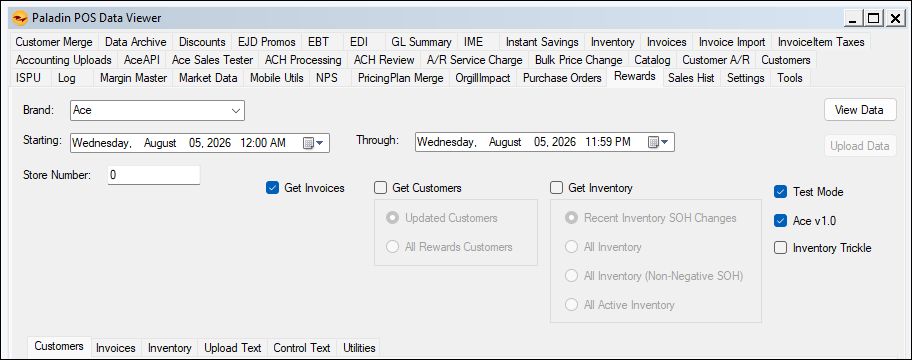
Figure 1: Data Viewer/Rewards tab
If you have questions or suggestions about this information, contact support@paladinpos.com.