
As per triPOS:
“Electronic Benefit Transfer (EBT) is an electronic system that allows government’s states benefits departments to issue money, accessible via a plastic debit card. Common benefits provided via EBT are typically of two general categories: food stamps (SNAP) and cash benefits. triPOS supports processing EBT cards for the following transactions:
- EBT Sale – triPOS supports performing a sale for either a food stamp or cash benefit EBT card. The cash benefit card sale transaction supports obtaining cash back (if cash back is enabled). Swipe, keyed and EMV transactions are supported using EBT cards. If the card used during a sale is an EBT card, the user will be prompted to select the type of EBT card (food stamp or cash benefit).
- EBT Refund – triPOS supports refunds only on the food stamp cards.
- EBT Full Reversal – triPOS supports full reversals of both sale and refund transactions. The EBT type of (food stamp or cash benefits) the original transaction needs to be specified in the request body of the full reversal transaction.
- EBT Balance Inquiry – triPOS supports EBT balance inquiry transaction to check the account status and balance of an EBT type card. Both food stamp and cash benefit cards are supported. If the card used during a balance inquiry transaction is an EBT card, the user will be prompted to select the type of card (food stamp or cash benefit).”
Important: Paladin supports food stamp (SNAP) benefits only; no cash benefits (TANF) are supported.
This article provides information and instruction on the following:
Setup
Note: Prior to setup in Paladin, the client needs to reach out to Worldpay to inform them they want to enable EBT processing.
Worldpay needs a copy of the SNAP certificate, which should also contain a Food and Nutrition Service (FNS #). triPOS will run this through their AIM team for enablement of EBT on the account and then set EBT pricing the same as the base rates for all other card brands on a given merchant ID (MID).
Worldpay will provide the following information:
- Acceptor ID
- Account ID
- Account Token
The client will provide these to Paladin Support for entry into Paladin Configuration.
Important: The following values must be established on terminals used for EBT (these are set in SightStream by the client):
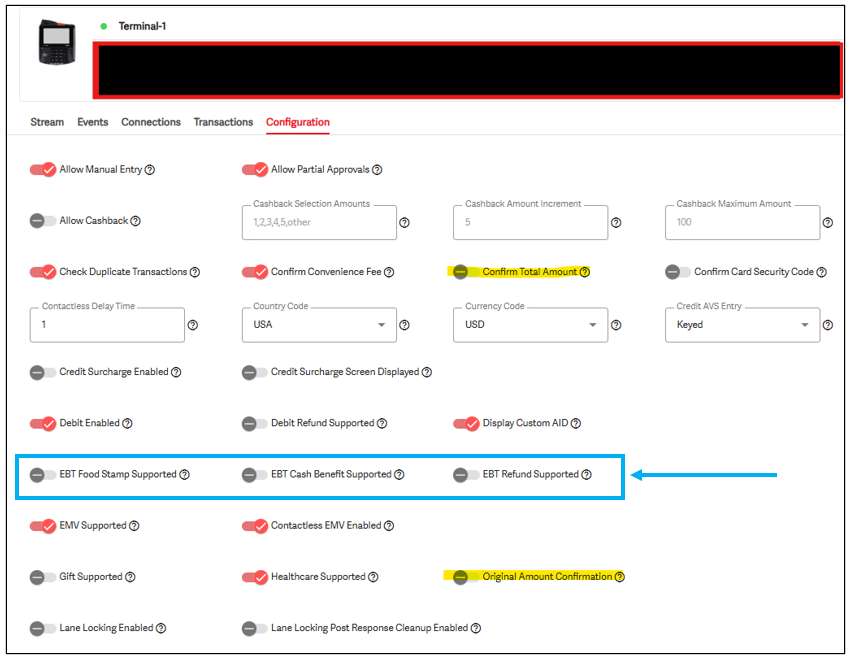
Figure 1: SightStream Terminal setting for EBT values
To set up triPOS EBT:
- In Paladin, from the main menu, select File > Setup.
- Select the Credit Card tab.
- In the Credit Cards pane, select triPOS from the Processor list.
- Check Enable EBT.
- Click Save.
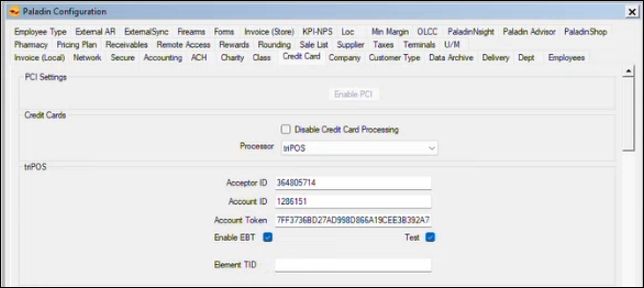
Figure 2: Enable EBT setup
- Select the Invoice (Store) tab.
- Check Capture Return Item Invoice Number.
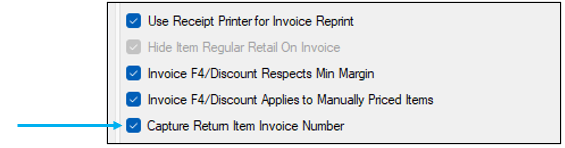
Figure 3: Capture Return Item Invoice Number
- Click Save, then click Close.
- In Paladin, from the top menu, select Maintain > Data Viewer.
- Select the EBT tab (only appearing if EBT set in the Credit Card/triPOS pane in Paladin Configuration).
It is the store’s responsibility to identify which items are eligible for EBT payments. Use the Data Viewer tool to quickly set eligibility by department, class, or subclass. This helps ensure your item eligibility is accurate and easy to maintain.
- In Enable Departments, removing the red X makes all items in that section eligible for SNAP. Unchecking, or leaving a section marked with a red X, makes all items in that section SNAP ineligible.
- In Disable Classes, disabling or marking a section with a red X, makes all items in that section ineligible for SNAP. Unchecking a section allows (not the same as enables) SNAP eligibility for all items in that section.
- Red X= Department and classes have been disabled.
- Red /= At least one of the subclasses has been disabled.
Note: Class disabled takes precedence over the Department being enabled.
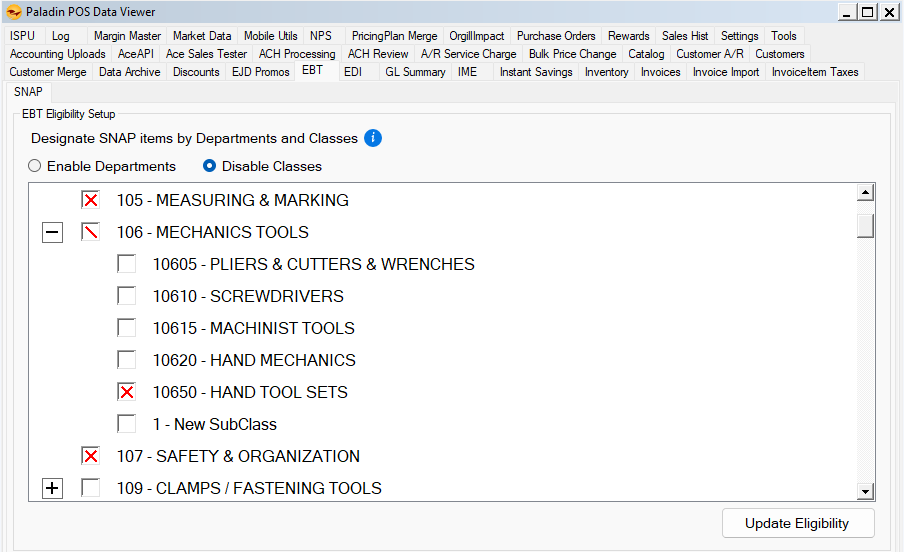
Figure 4: Data Viewer/EBT
Eligibility for an item can also be enabled/disabled in the Inventory module’s General tab if the department has been enabled in the Data Viewer; that is, the EBT checkbox becomes disabled if the department is not enabled.

Figure 5: EBT checkbox
Processing EBT in Paladin
EBT cards are processed in Paladin in the following ways:
Processing sale of items
Processing a sale using an EBT card follows the same process when using a credit card. Taxes are applied to the sale and are adjusted when checkout is complete; that is, any untaxable items will be calculated at the end of the transaction. EBT card being used is only reflected on the invoice.
Important: If the purchases include non-EBT items, the EBT card must be used first, then payment for the non-EBT items is entered (credit card or cash). Also, if a coupon is going to be used on EBT items, the coupon needs to be entered first, then the EBT card.
The invoice shows that an EBT card was used (shown as Food Stamp) and the remaining balance on the EBT card.
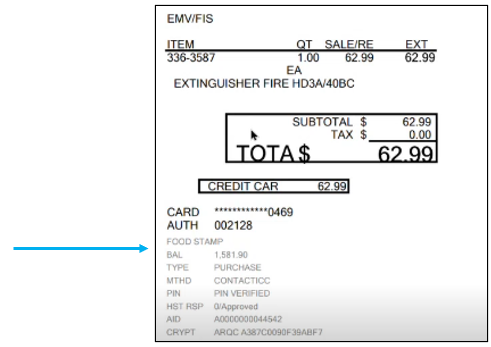
Figure 6: EBT invoice
Refunding EBT sale of items
Important: Customers must present the receipt of purchase to get a refund for the item(s). The customer must also have their EBT card present for it to be swiped and to have the return go to that card (no cash returns for EBT).
The process on returns is as follows:
- The cashier enters the return item and marks the quantity as a negative number.

Figure 7: Return item marked as negative quantity
- The EBT Eligible Return Item Invoice Number window opens.
- The customer provides the receipt to the cashier.
- The cashier enters the Invoice Number and clicks OK.
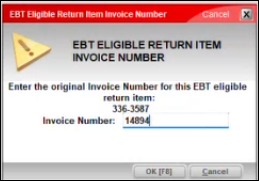
Figure 8: EBT Eligible Return Item Invoice Number window
The return invoice now shows the return amount as a negative, and a note that this is a return item is shown in a Notes field.

Figure 9: Invoice showing return
The EBT Payment Detected window opens clarifying the return.
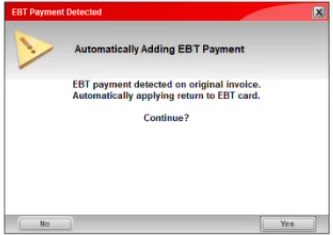
Figure 10: EBT Payment Detected window
The Credit Card Processing window opens showing the correct amount credit card payment.
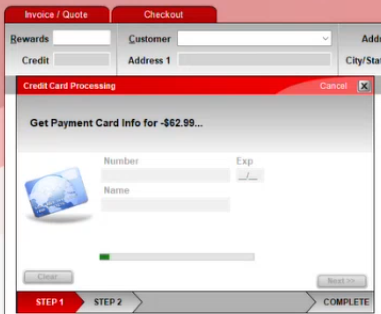
Figure 11: Credit Card Processing window
- The cashier enters the credit card information.
The customer signature window opens.
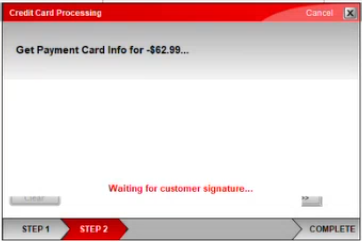
Figure 12: Customer signature
- The customer signs for the return.
An invoice is created showing:
- The return item part number.
- The Original Invoice number.
- The date and time of the return.
- Showing EBT was used by stating FOOD STAMP.
- The balance on the EBT card reflecting the return amount added.
- The Type as RETURN.
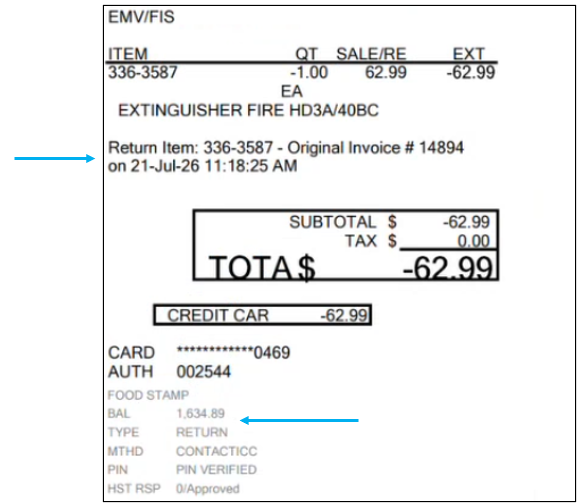
Figure 13: Return invoice
EBT in Reports
EBT payments are reflected in the following reports:
Credit Card Deposit List report
To run the Credit Card Deposit List report:
- In Paladin, select the Reports module.
- In the Report Area pane, select Sales Analysis > Daily Balancing.
- In the Report List pane, select Credit Card Deposit.
- In the Choose Report pane, click F12 Next.
- In the Credit Card Deposit window, enter values in the Report Settings pane.
- In the Sorting Options pane, click F12 Run Report.
A PDF of the report opens, and under Card Type Details, EBT payment is shown.

Figure 14: Credit Card Deposit report/Card Type Details
Comparative Revenue Report
To run the Comparative Revenue report:
- In Paladin, select the Reports module.
- In the Report Area pane, select Sales Analysis > Revenue.
- In the Report List pane, select the type of Comparative Revenue report.
- In the Choose Report pane, click F12 Next.
- Set values in the Report Settings pane.
- In the Additional Settings pane, select a value from the Detail by: list.
- In the Sorting Options pane, click F12 Run Report.
A PDF of the report opens, and under Sales Tax Detail, EBT Sales is shown.
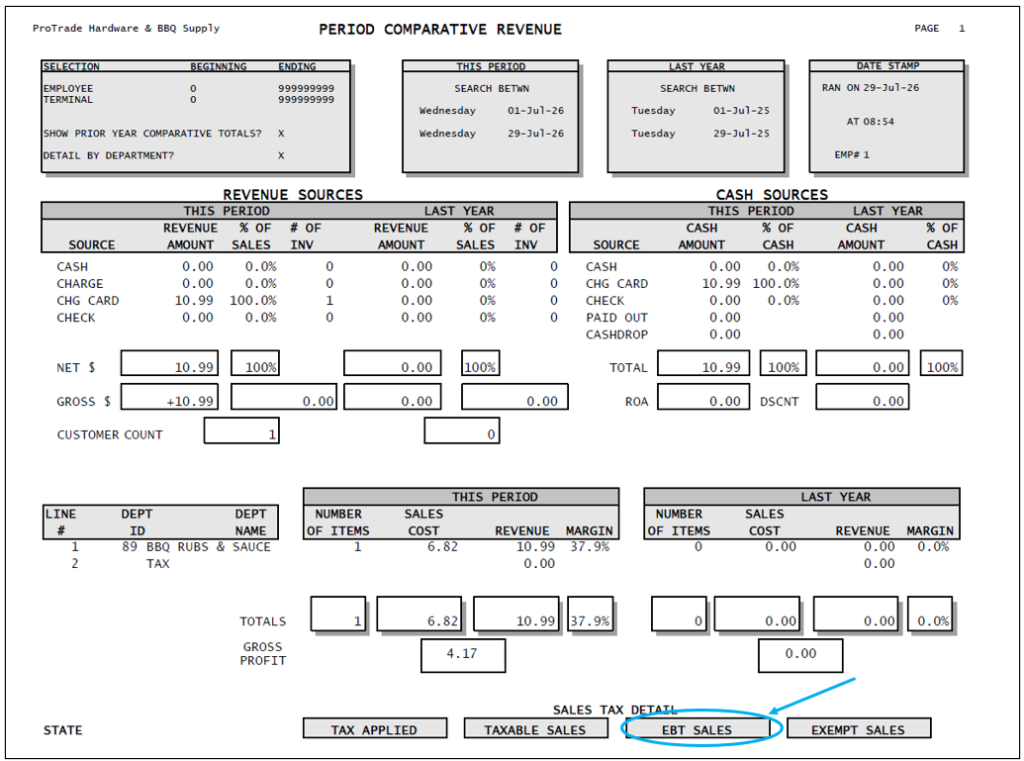
Figure 15: Comparative Revenue report/EBT Sales
If you have questions or suggestions about this information, contact support@paladinpos.com.