
Paladin’s Transaction Preview feature provides the capability to open a transaction and view the invoice with details of the transaction.
To use the feature:
- In Paladin, select the Invoice/Quote module.
- Om the bottom ribbon of the module, select F6 Recall Transaction.
The Recall Transaction window opens.
- On the top of the window, enable the type of transaction to preview.
- Highlight the transaction you want to preview.
- Under the Preview column, click and hold the magnifying glass to open a preview window to view the transaction/invoice.
-
While continuing to hold the mouse click, you can interact with the preview window by hovering over it and using the mouses scroll wheel to go through the transaction/invoice.
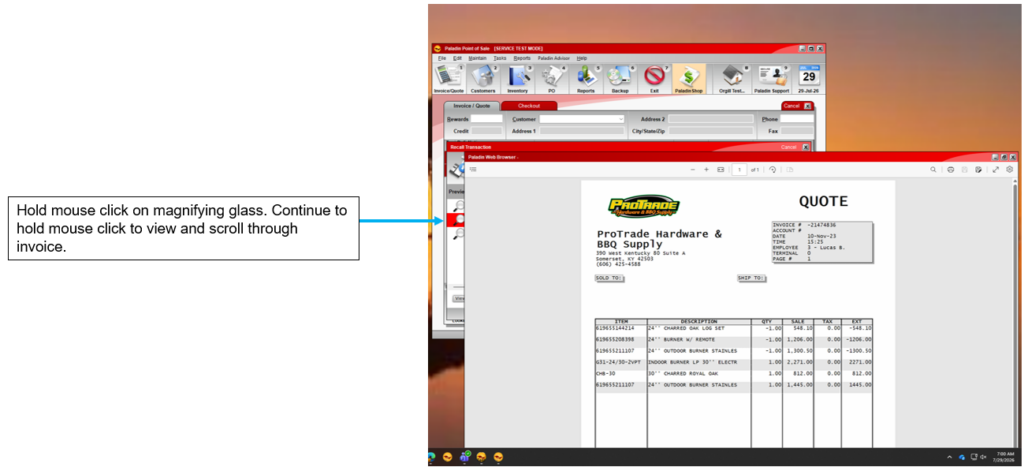
Figure 1: Click and hold view of invoice
-
Release the mouse click to close the preview.
If you have questions or suggestions about this information, contact support@paladinpos.com.
*Content is subject to change. For the most recent version, visit the Help Portal.
Printed on: 10/09/26