
This article is written to provide Paladin TSRs general accounting information to provide to clients with questions on the integration between Paladin and QuickBooks.
Figure 1 provides high-level accounting types and subtypes underneath each.
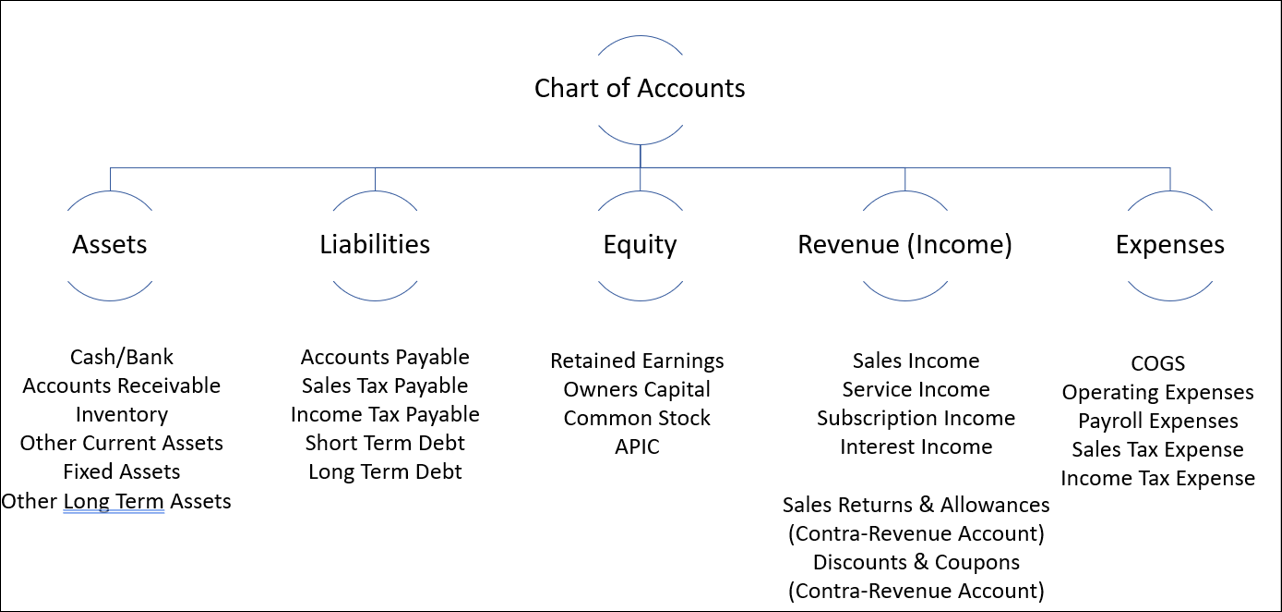
Figure 1: High-level accounting types and subtypes
Debits and credits are utilized in recording the transactions to ensure that all entries balance. Each account type has its rules for debit and credit entries. Debits and credits are neither positive or negative; they are directional indicators. For instance, in assets and expenses, debits increase the balance, while in liabilities, equity, and revenue (income), credits increase the balance.
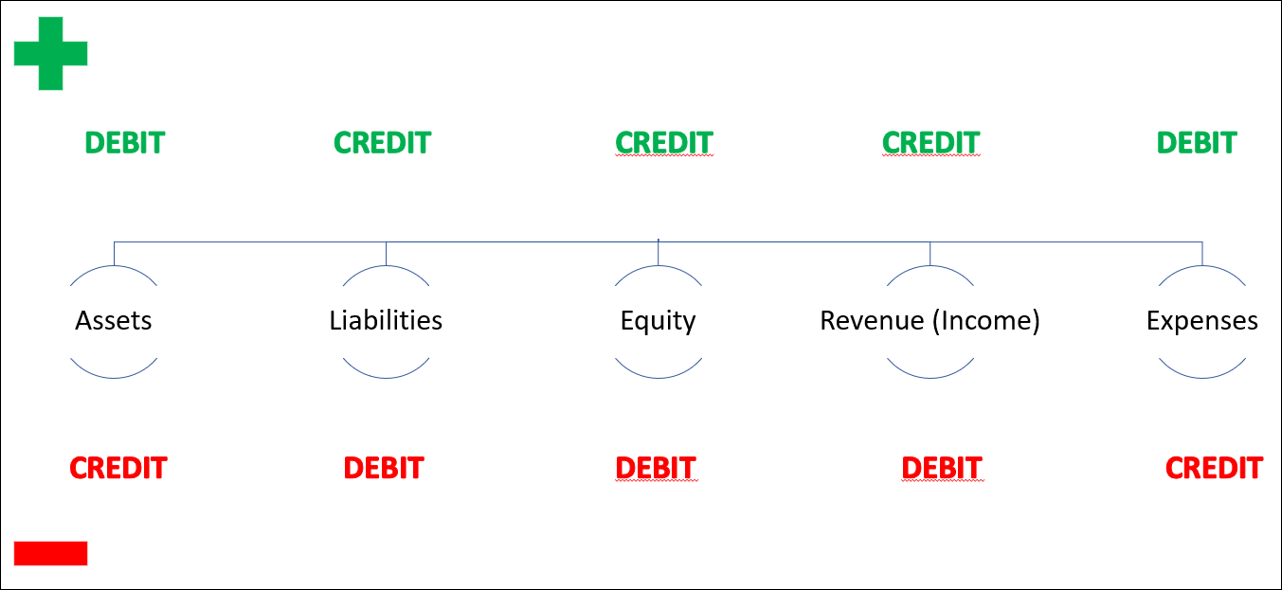
Figure 2: Debits and credits
Standard practice is to have account types and subtypes assigned a number range.
Figure 3 shows the number range applied to the accounting types and QuickBooks type.
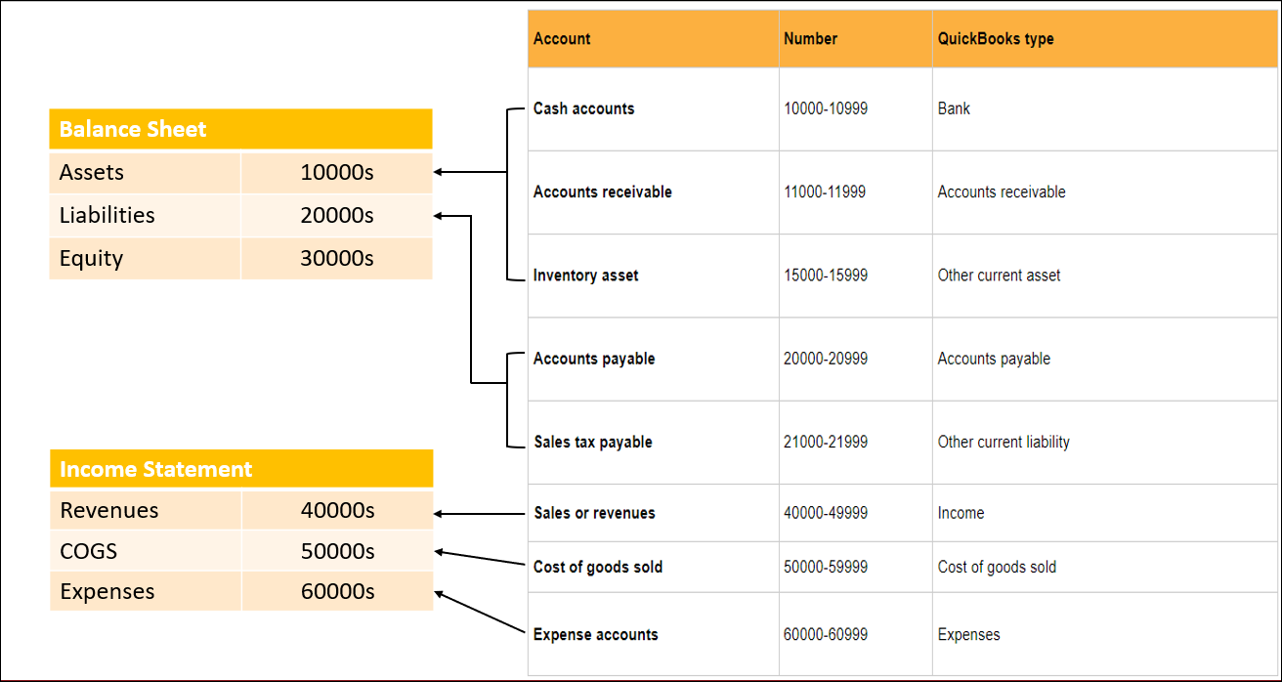
Figure 3: Number range applied to the accounting types and QuickBooks type
With this, Paladin can provide clients with numerical mapping in the Accounting tab of Paladin Configuration.
Important: The examples provided in Figures 4 through 7 show how various Paladin General Ledger accounts can be grouped within QuickBooks accounts. For example, in Figure 4, Cash from Sales through Paid IN/OUT from Sales can all fall into one QuickBooks account. However, it’s important to remember that not all Bookkeepers/Accountants will group these accounts this way, and the QuickBooks account numbers used in Figures 4 through 7 are examples and will likely be different in every store. It is standard accounting practice to have account types and subtypes assigned a number range. However, QuickBooks does not require users to do this. The most important aspect to a successful mapping is making sure the Paladin General Ledger accounts are mapped to the correct Account Type or Subtype within QuickBooks.
In the Asset Accounts pane of the Accounting tab, the numerical mapping is shown in Figure 4.
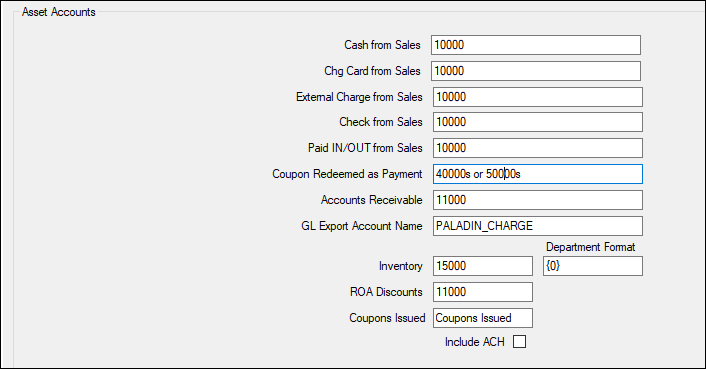
Figure 4: Numerical mapping in Asset Accounts
In the Liability Accounts pane of the Accounting tab, the numerical mapping is shown in Figure 5.

Figure 5: Numerical mapping in Liability Accounts
In the Revenue Accounts pane of the Accounting tab, the numerical mapping is shown in Figure 6.

Figure 6: Numerical mapping in Revenue Accounts
In the Expense Accounts pane of the Accounting tab, the numerical mapping is shown in Figure 7.
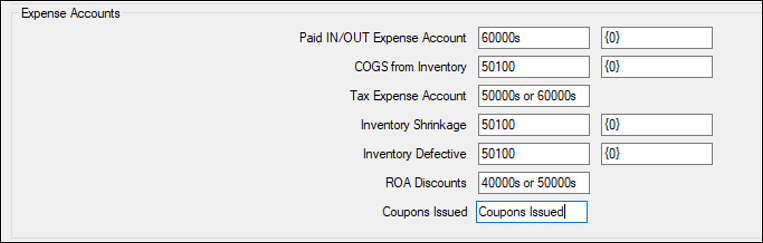
Figure 7: Numerical mapping in Expense Accounts
If you have questions or suggestions about this information, contact support@paladinpos.com.
