
The Purchase Order module lets you to create, view, and edit a purchase order (PO).
To create a PO:
- On the top of the module, use either the UPC icon to scan an item, the Magnifying Glass to search for an item, or enter the part number.

Figure 1: Top of module/find item options
The following information on the item appears on the module:
- Part number
- Part description
- Stock on Hand (SOH)
- Minimum Order (Min Ord)
- On Order (On Ord)
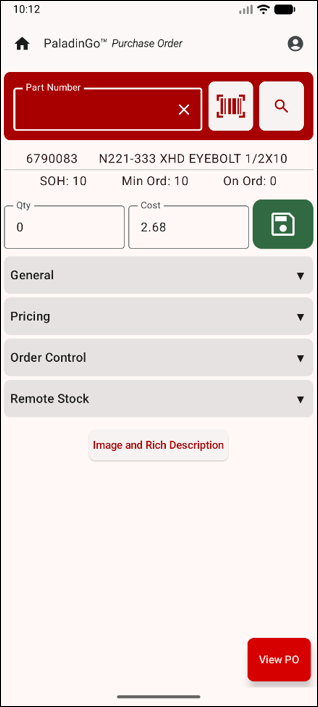
Figure 2: PO part
- In the Order quantity box, enter the number of item to add to the PO.
- In the Cost box, enter the new cost (if necessary).
- Tap the green floppy disk icon to save the PO to the Paladin terminal.
You can also view the purchase order and make any changes (edit) by tapping View PO in the bottom right of the module.
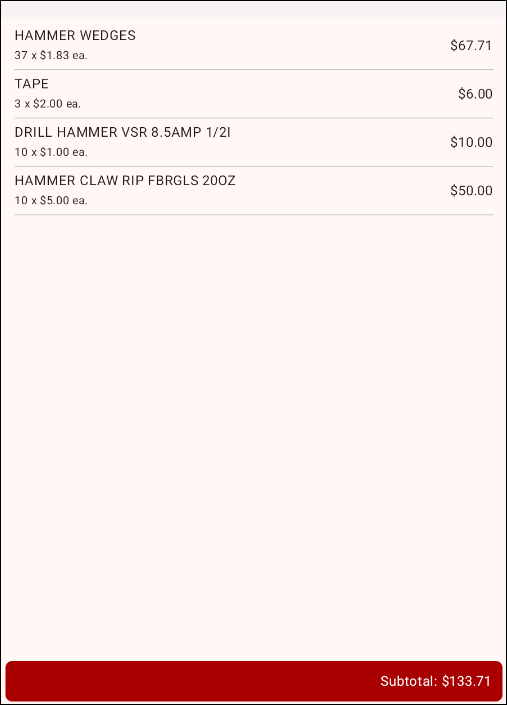
Figure 3: View PO
To make a change to the Qty or Cost, tap on the item, make changes, and tap the green floppy disk icon to save the PO to the Paladin terminal.
Figure 4 shows the changes reflected in the module.
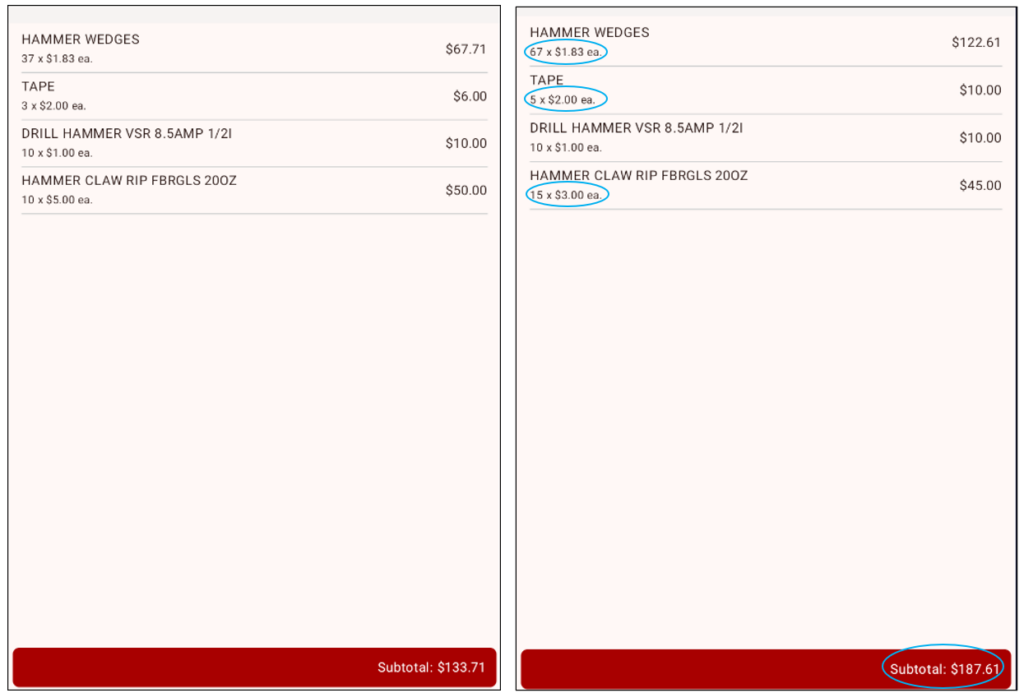
Figure 4: Compare PO changes
Important: Recalling the PO and finalizing/editing the amount of items in the transaction is done is Paladin.
- In Paladin, select the PO module.
- On the bottom ribbon of the module, select F6 Recall PO.
The Recall PO window opens.
- On the top of the Recall PO window, enable POs.
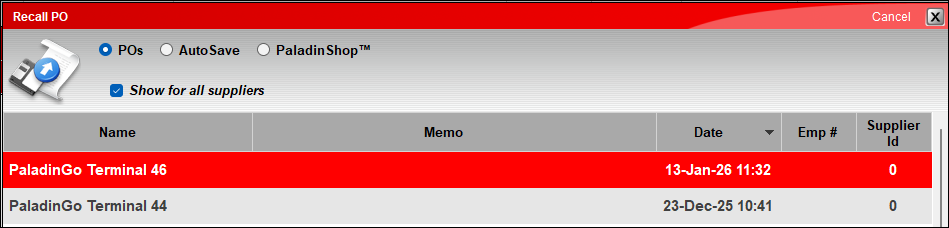
Figure 5: Recall PO window
- Highlight the PO, and on the bottom ribbon of the window, press F12 Recall.
- In the PO that opens, the changes made are reflected.

Figure 6: PO in Paladin terminal
- Press F8 Confirm PO to process the PO.
If you have questions or suggestions about this information, contact support@paladinpos.com.
