
The ALT Lookup feature is present in the following PaladinGo™ modules:
- Count
- Inventory
- Checkout
- Purchase Order
- Receive Purchase Order
When searching for parts in the listed modules, if a part is not found, the Part Not Found message opens allowing the user to either enter an alternate number they know this part is associated with or create a new part with the number.
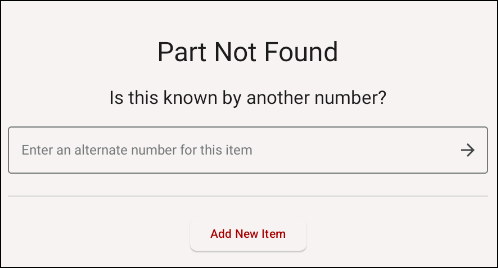
Figure 1: Part Not Found message
- To create a new part number for the item, tap Add New Item.
The Create New Part pane opens.
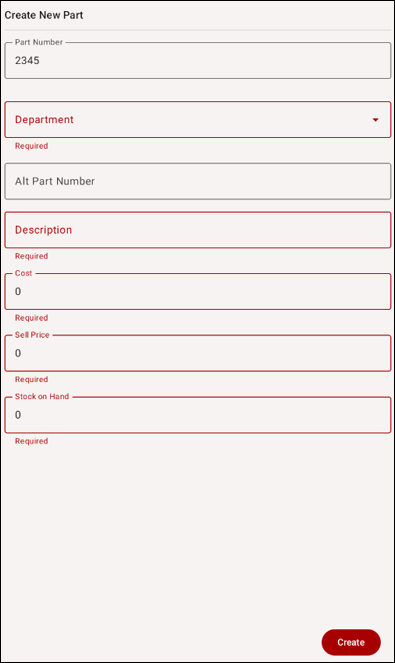
Figure 2: Create New Part pane
- Fill out all Required fields, then tap Create.
The new part info is shown in the module.
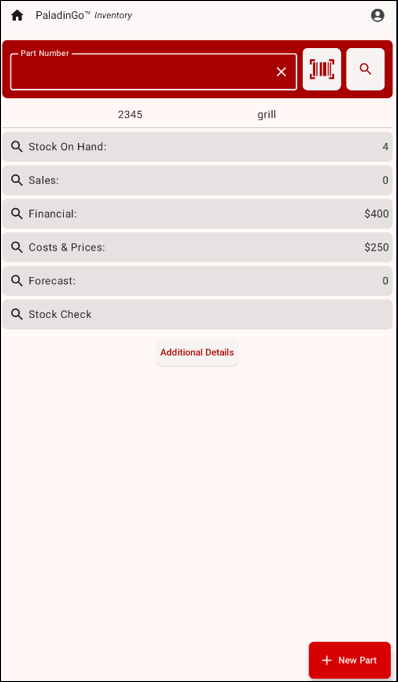
Figure 3: New part in module
The new part is also added into Paladin Inventory.
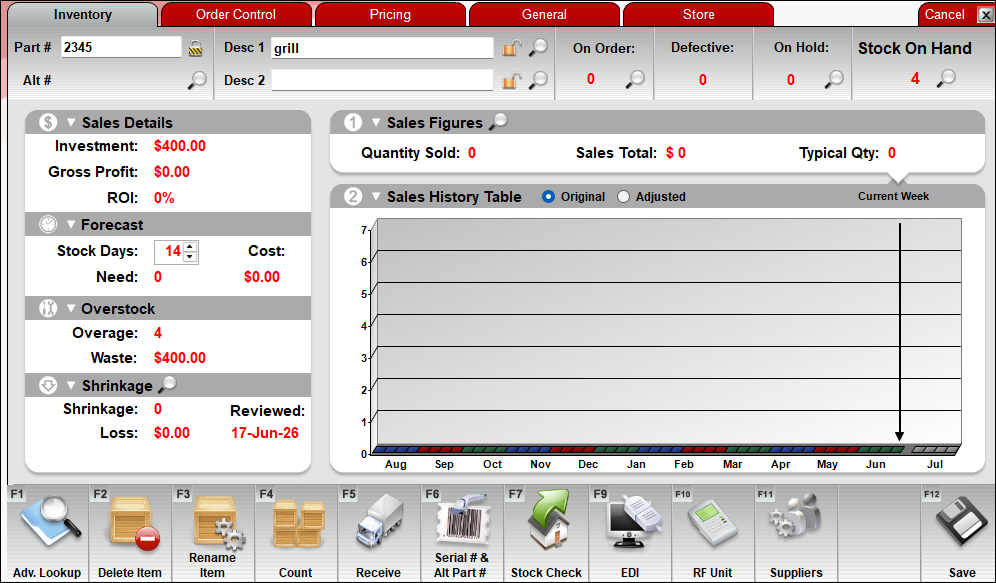
Figure 4: New item in Paladin Inventory
If you have questions or suggestions about this information, contact support@paladinpos.com.
*Content is subject to change. For the most recent version, visit the Help Portal.
Printed on: 10/09/26
