
October 2026 Release includes the following:
Recall Transaction Preview
Paladin’s Transaction Preview feature provides the capability to open a transaction and view the invoice with details of the transaction.
On the bottom ribbon of the Invoice/Quote module, selecting F6 Recall Transaction opens the Recall Transaction window.
Under the Preview column, click and holding the magnifying glass opens a preview window to view the transaction/invoice.
Continuing to hold the mouse click, users can interact with the preview window by hovering over it and using the mouses scroll wheel to go through the transaction/invoice.
Releasing the mouse click closes the preview.
For information and instruction, refer to the Recall Transaction Preview Feature KBA.
Fraud Warning: Credit Card Returns
Paladin has added a Fraud Warning as an additional safeguard for card-not-present credit card returns not associated with an invoice. This additional warning helps protect clients from ongoing scams targeting retail employees.
Now, when a return is being performed, and the return is not associated with a known invoice, and the money is being returned to a manually entered credit card, Paladin will interrupt the normal workflow and produce the following Return without Invoice message:
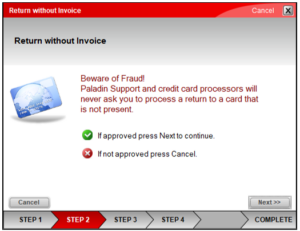
Note: Paladin technicians will never ask you to perform a return with a credit card that we provide to you. If you suspect that you’ve been contacted by a scammer, do NOT give them remote access to your network, hang up the phone immediately, and contact Paladin Support at 800-725-2346 option 2. Additionally, Paladin technicians will never call you on weekends (unless in response to a store-down issue that you reported), or ask for login information, passwords, or sensitive information.
For information and instruction, refer to the Fraud Warning: Credi Card Returns KBA.
Worldpay triPOS Surcharging
Credit surcharge is an additional fee that merchants can add to a transaction when cardholder pays with a credit card. The surcharge helps cover the expenses incurred by the business for processing credit card payments.
When setting up surcharging, a service fee (Paladin limits the configurable percentage rate to a maximum up to 3%) will be added for credit card transactions. No rate increase will be applied for debit card transactions.
Important: Stores are solely responsible for properly investigating applicability of surcharges in your state, getting an agreement that the service fee charged is within the limits established by the credit card brands you process (Paladin limits the configurable percentage rate to a maximum up to 3%), the signage required, and accurately selecting card types on the transactions (debit or credit) in your store(s).
The following are the scenarios applicable to surcharges:
- Surcharges apply to credit cards only.
- Surcharges are not allowed for debit or prepaid cards (even if run as “credit”).
- Surcharges are allowed across card-present and online (card-not-present) transactions, this Includes recurring payments.
- Stores must comply with state laws and card network rules, which vary by location/state.
For information and instruction, refer to the Worldpay triPOS Surcharging KBA.
If you have questions or suggestions about this information, contact support@paladinpos.com.