
Credit surcharge is an additional fee that merchants can add to a transaction when cardholder pays with a credit card. The surcharge helps cover the expenses incurred by the business for processing credit card payments.
Important: You are solely responsible for properly investigating applicability of surcharges in your state. This is particularly important for the following states that Paladin is aware of having provisions that may prohibit surcharges.
- Connecticut
- Maine
- Massachusetts
- New York state
- Puerto Rico
Important: Bin tag 52 is now available to meet the surcharge laws in New York. As of 01/01/2024, New York now requires stores that are passing credit card fees onto card holders to post both the price for paying with cash and the price for paying with a credit card on their bin tags.
This article provides information and instruction on the following:
- How triPOS Surcharging works
- Key rules and requirements
- Platform/processing support
- Experience considerations
- Setup in Paladin
- Paladin checkout process
- Return on surcharge
How triPOS Surcharging works
When setting up surcharging, a service fee (Paladin limits the configurable percentage rate to a maximum up to 3%) will be added for credit card transactions. No rate increase will be applied for debit card transactions.
Important: Stores are solely responsible for properly investigating applicability of surcharges in your state, getting an agreement that the service fee charged is within the limits established by the credit card brands you process (Paladin limits the configurable percentage rate to a maximum up to 3%), the signage required, and accurately selecting card types on the transactions (debit or credit) in your store(s).
The following are the scenarios applicable to surcharges:
- Surcharges apply to credit cards only.
- Surcharges are not allowed for debit or prepaid cards (even if run as “credit”).
- Surcharges are allowed across card-present and online (card-not-present) transactions, this Includes recurring payments.
- Stores must comply with state laws and card network rules, which vary by location/state.
Key rules and requirements
Merchants who surcharge must:
- Notify their card network and processor (e.g., Visa + acquirer) at least 30 days before starting.
- Cap the surcharge at 3% flat (not subject to change).
- Clearly disclose the fee:
- At entry and checkout (in-store or online).
- As part of the total displayed price or via compliant dual pricing.
- Surcharge must appear on every receipt/invoice.
Platform/processing support
triPOS surcharges are:
- Supported via Worldpay/Vantiv Core platform on Express.
- Available for both acquired and gateway clients using that platform.
Note: Surcharge amounts may not appear in settlement files.
Experience considerations
The following are considerations to surcharges:
- Impact to customer perception and conversion.
- Requires clear, upfront pricing (no surprises at checkout)
- Must align with legal and brand compliance
Merchant surcharging is a regulated way to offset credit card processing costs, but it requires:
- Strict adherence to card network rules.
- Compliance with state-by-state laws.
- Transparent pricing UX across the entire payment flow.
Only a few jurisdictions fully ban credit card surcharges—primarily Connecticut, Massachusetts, Maine (often treated as a restriction/near-ban), and Puerto Rico—while most others allow them. Some states like California and Texas have complex or partially unenforceable rules, so they’re often mistaken for bans. New York allows surcharging but requires strict upfront price transparency (no adding fees at checkout).
Setup in Paladin
Note: For Paladin Support to begin the surcharging process, contact the client on the phone and navigate to: platformspartner.worldpay.com/wp4p-surcharge.html#FormLink
The information to be filled out by Paladin Support will be:
Action: Register
Retail Face to Face?: Yes
Brand or Product?: Brand
MCC: 5072 for Hardware Stores, 5912 for Pharmacies
Surcharge%: 3 for ALL so long as their state allows.
The store may fill out the remaining information, such as business name and address.
The day prior to the setup within Paladin, Worldpay should be notified to update the store’s processing fees to a flat 3% using the following email template:
Subject – (Store Name – MID) Surcharging Fees
Hello Team,
We have a store, (Store Name – MID), that has completed the required 30-day notice period for surcharging.
The store has requested that their processing rate be increased to 3%, effective (Effective Date).
Please update the store’s processing rate accordingly.
Thank you,
Important: In SightStream, the client needs to check Confirm Total Amount and uncheck Original Amount Confirmation.
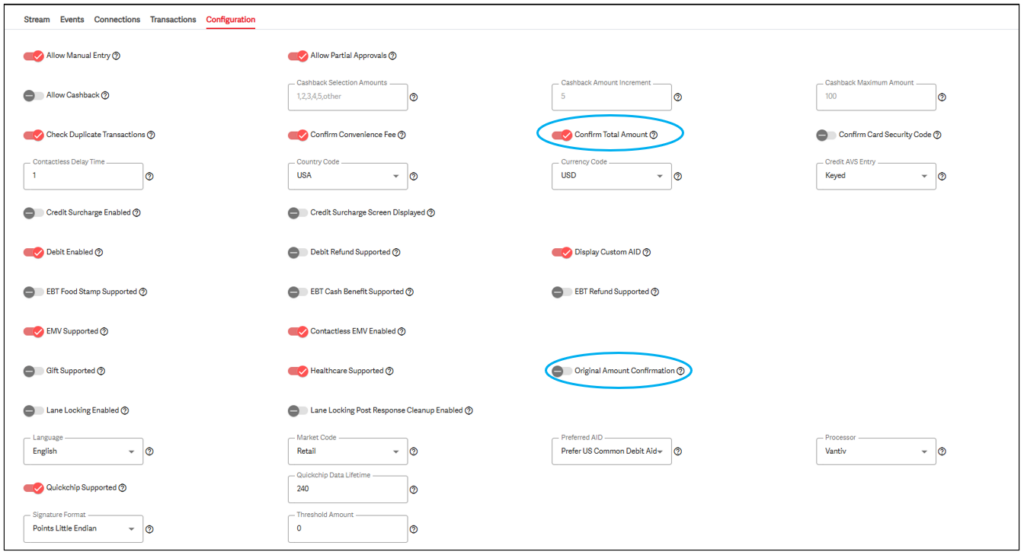
Figure 1: SightStream setting for surcharge values
To set up triPOS surcharge in Paladin:
- In Paladin, from the main menu, select File > Setup.
- Select the Credit Card tab.
- In the Credit cards pane, select triPOS from the Processor list.

Figure 2: triPOS Credit Surcharging pane
- In the triPOS Credit Surcharging pane, check Enable Surcharge. Note: Information on triPOS Surcharging is available by clicking on the Learn More icon
 .
.
The Surcharge widow opens providing states where surcharges are not allowed along with note that Manager acknowledgment is required.

Figure 3: Surcharge window
- Click OK.
The Surcharge Acknowledgment window opens.
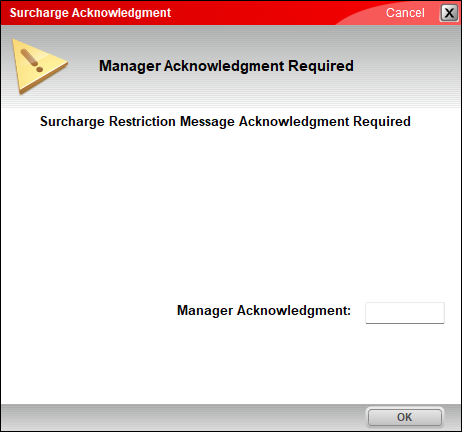
Figure 4: Surcharge Acknowledgment window
- A manager must enter their password in the Manager Acknowledgment box.
- Click OK.
Note: If a manager does not enter their password, the Not Enabled window opens stating that surcharges cannot be enabled.
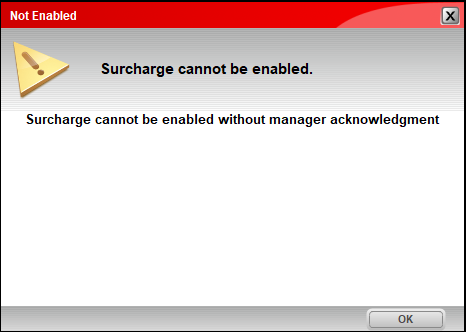
Figure 5: Not Enabled window
After manager acknowledgment is established, the Surcharge Restriction acknowledgment by box shows the manager’s credentials and the date and time acknowledgment occured.

Figure 6: Surcharge Restriction acknowledgment by
- If taxes are applied to surcharges, check Surcharge Taxable.
- Set the percentage using the Percentage list.
Note: Paladin limits the configurable percentage rate to a maximum up to 3% (which is the default).
- Click Save.
The Surcharge Acknowledgment window opens showing the terms of acknowledgment.
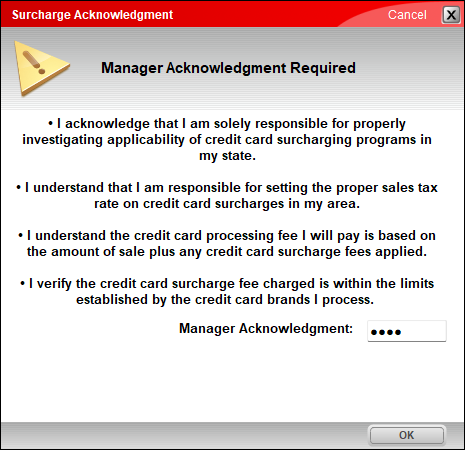
Figure 7: Surcharge Acknowledgment window
- Enter the manager password in the Manager Acknowledgment box and click OK.
Paladin checkout process
Note: If payment is both a credit card and debit card, only the credit card amount is surcharged. If using more than one credit card, each payment gets surcharged individually.
- In Paladin’s Invoice/Quote module, enter items to be purchased.
- When complete, click F8 Checkout.
- In the Checkout tab, the amount of the surcharge is shown.
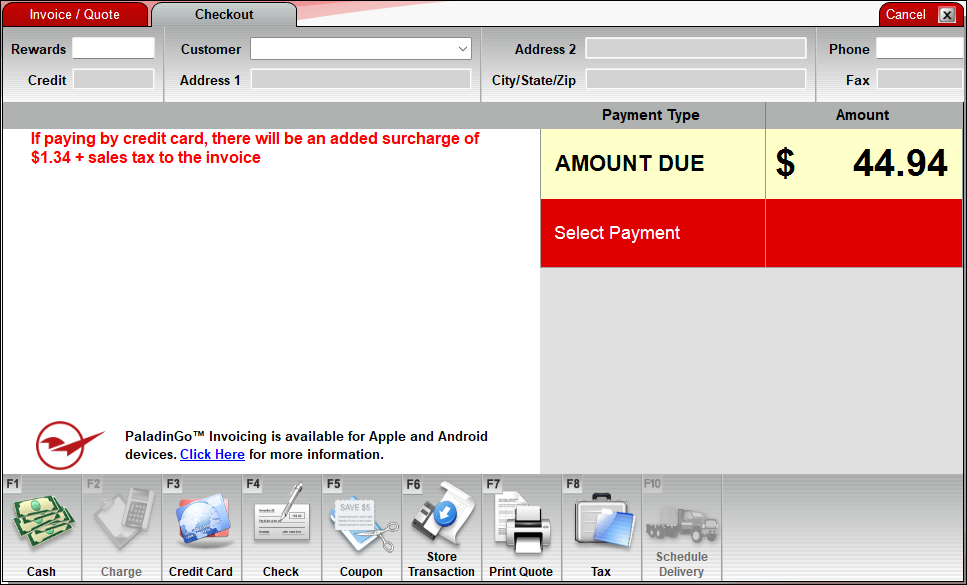
Figure 8: Surcharge in Invoice/Quote
The printed invoice shows the surcharge.
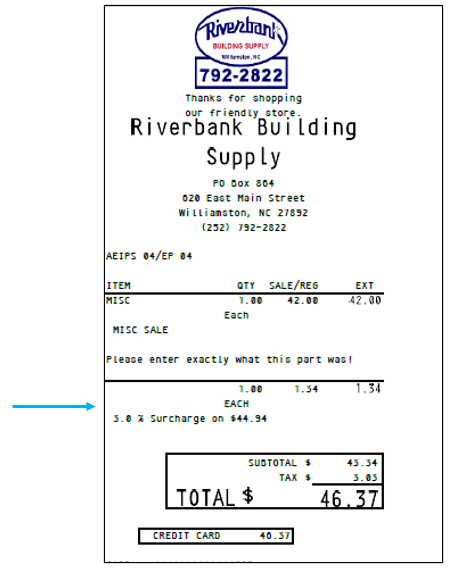
Figure 9: Invoice with surcharge
Return on surcharge
The amount returned is the amount of the item and the surcharge applied. If only returning several items, the surcharge will be returned for just those items.
If you have questions or suggestions about this information, contact support@paladinpos.com.