
Adjusted Quantity changes in Inventory Sales Figures are now recorded in historical logging, helping Paladin Support and store personnel to determine when Adjusted Quantity values are modified, who made the change, or what process performed the update.
Note: If the Adj Qty field does not show the expected value, the affected items may have been sold without being included in the order needs calculations. This happens when the items were part of a sale with Include sales in Order Needs calculations unchecked in Paladin Configuration > Sale List > Sales Configuration.
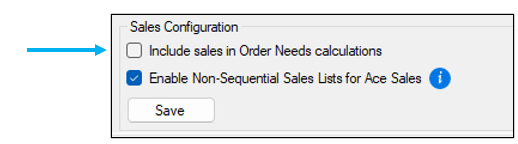
Figure 1: Include sales in Order Needs calculations
To view the changes/status of an adjusted quantity:
- In Paladin, select the Inventory module.
- Enter a part number in the Part # box and press Enter.
- In the Sales Figures pane, click the magnifying glass next to Sales Figures.
The Recent Sales History window opens.
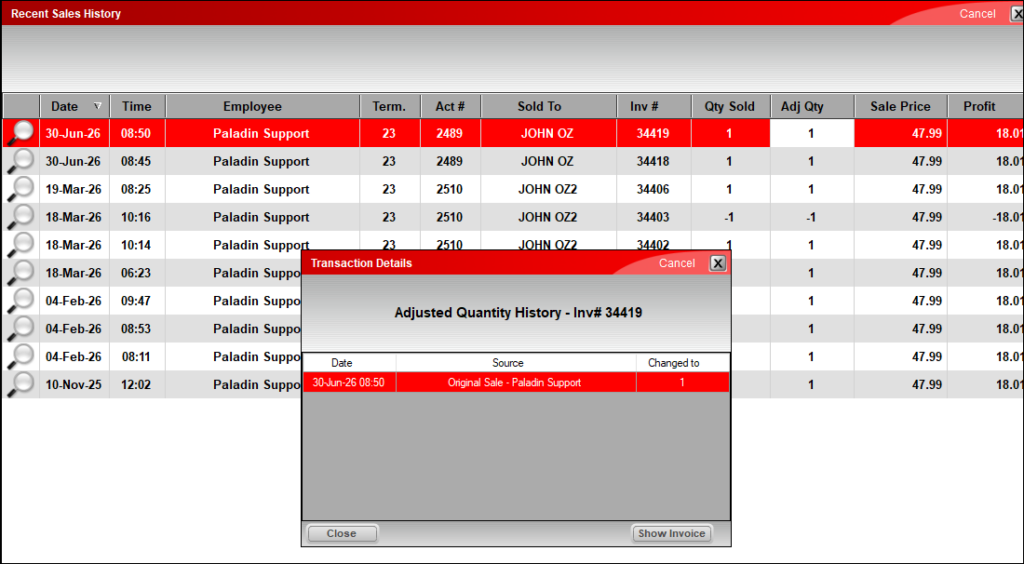
Figure 2: Transaction Details: Adjusted Quantity History
- Double click on a line item.
The Transaction Details window opens with Adjusted Quantity History for the item.
- You can either press Close to close the window or press Show Invoice to open a PDF of the invoice.
If you have questions or suggestions about this information, contact support@paladinpos.com.