
Note: Paid-In, Paid-Out, or Cash drop functions under $100 do not require Manager Override. If the amount is over $100, the user needs Manager Override enabled as an employee permission; or, a Manager will need to manually override.
This article provides instruction and information on the following:
Paid-in, Paid-out, Cash drop
- In Paladin, on the top ribbon, select the Invoice/Quote module.
- On the bottom ribbon of the Invoice/Quote tab, select F8 Checkout.
- On the bottom ribbon of the Checkout tab, select F1 Cash.
- Enter the desired cash amount needed, then press Enter.
The Paid Out Details window opens with the following options:
-
- Paid in
- Cash Drop
- Paid Out
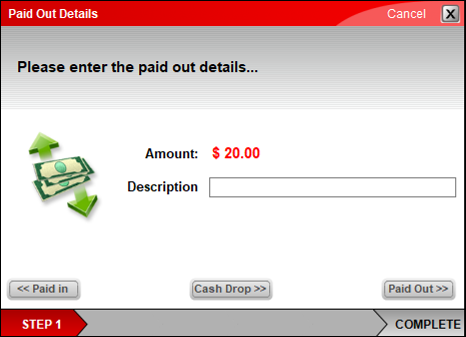
Figure 1: Paid Out Details window
Note: Each option appears on a receipt with the reason shown.
For Paid in, enter a reason in the Description box. For example: Starting Petty Cash
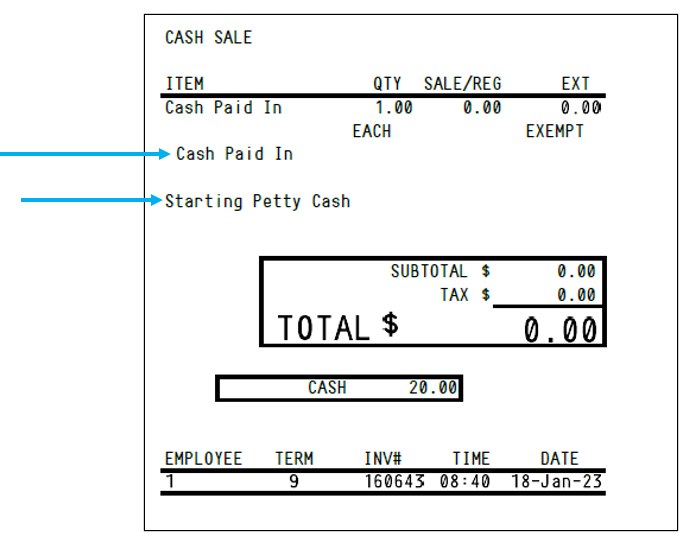
Figure 2: Cash Paid In receipt
For Cash Drop, enter a reason in the Description box. For example, Cash drop/Moving deposit
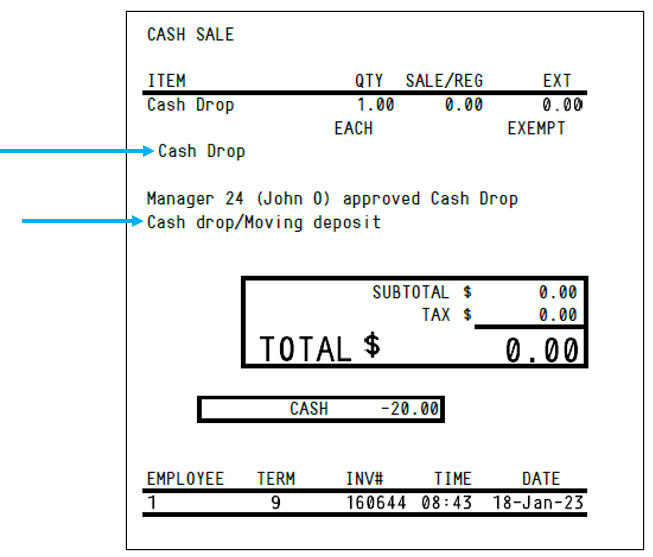
Figure 3: Cash Drop receipt
For Paid Out, enter a reason in the Description box. For example, Petty Cash to pay for services
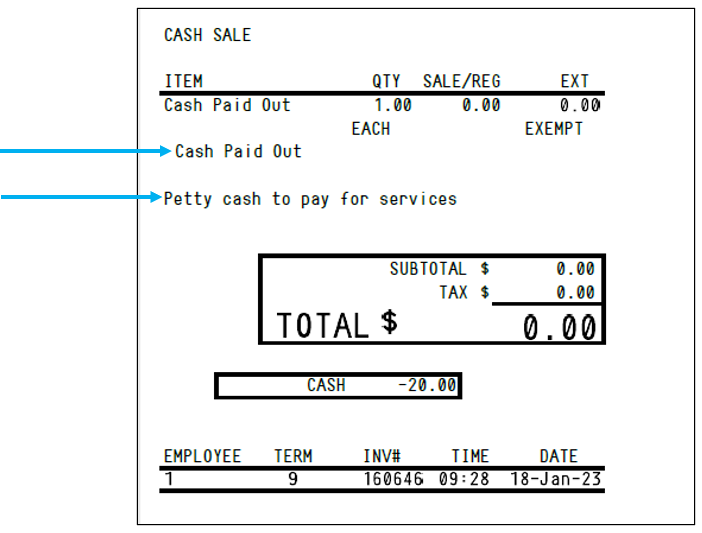
Figure 4: Cash Paid Out receipt
Once completed, the cash drawer opens and a receipt prints. The printed receipt should then be placed inside the cash drawer.
Note: If you have AUTO-Print Receipts turned off, a receipt will not print at the end of this process.
Reports
Paid In, Paid Out, and Cash Drop details show in the following reports as a negative amount:
Today’s Register Balance
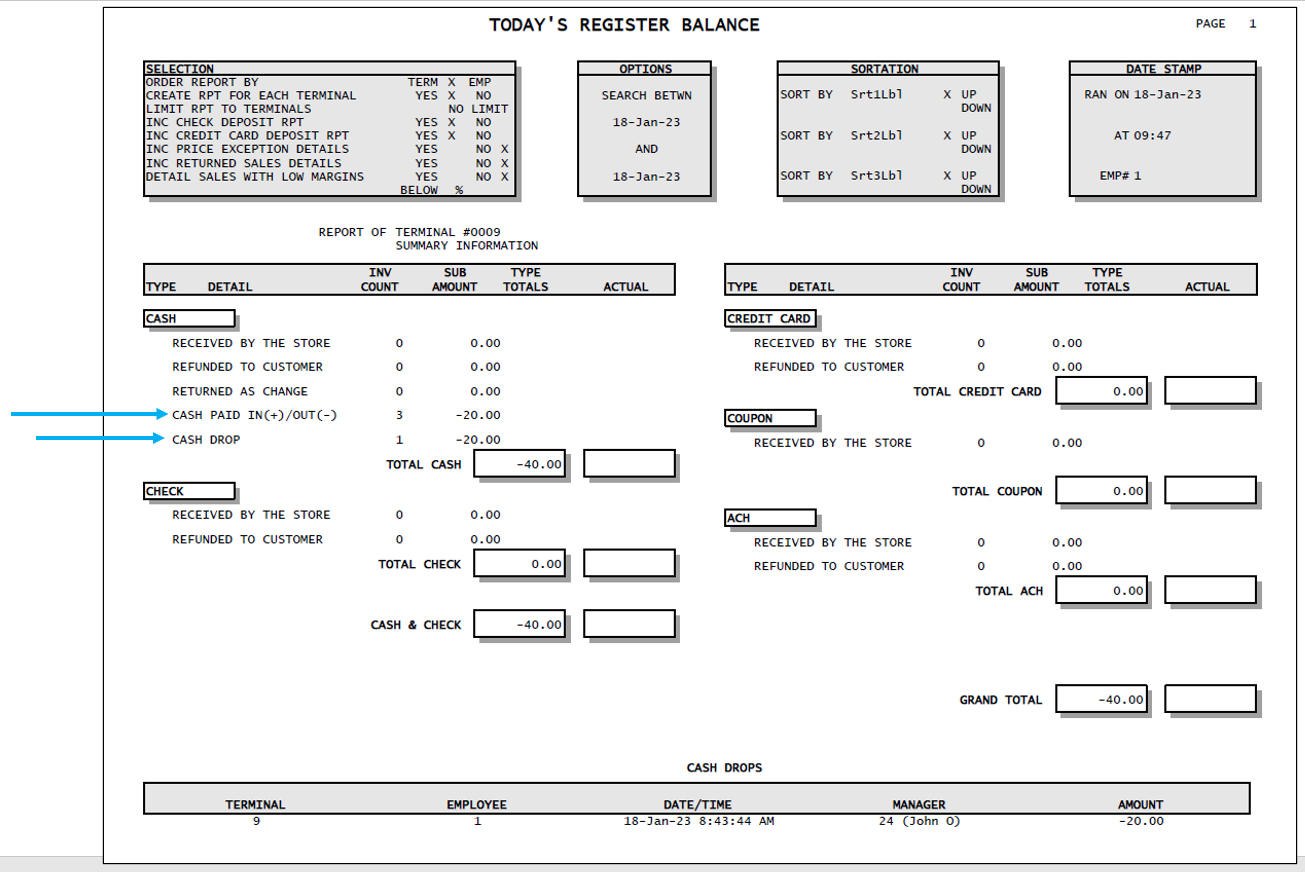
Figure 5: Today’s Register Balance report
Today’s Comparative Revenue report
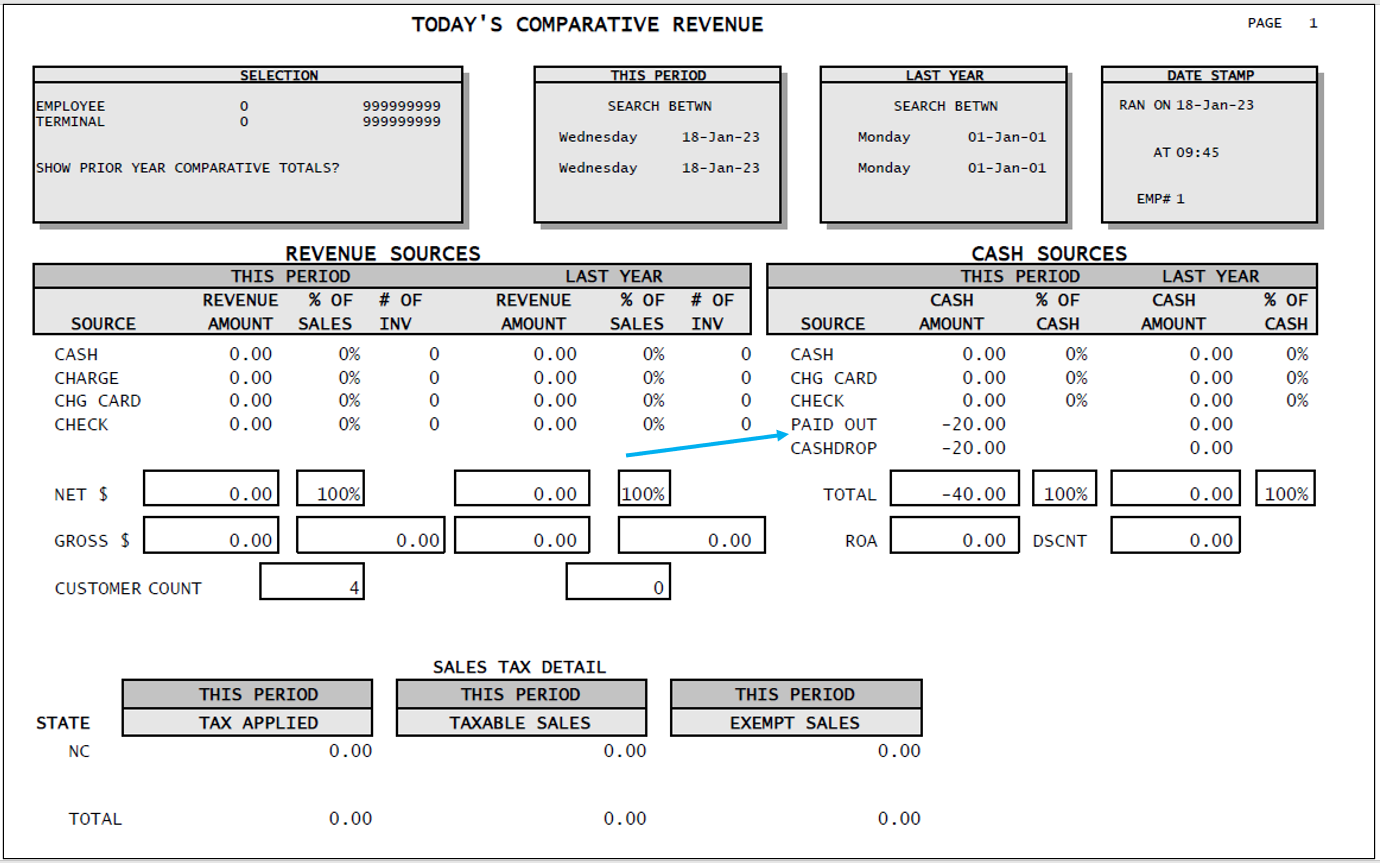
Figure 6: Today’s Comparative Revenue report
If you have questions or suggestions about this information, contact support@paladinpos.com.
