
By default, Memor 12 and 17 devices are set up to only charge to about 80% for long-term battery health. This can be adjusted, and there are three options to choose from.
Instruction to customize battery profile:
Option 1: On the Memor, exit the launcher
-
- Select Launcher Settings.
- Enter the password 1234.
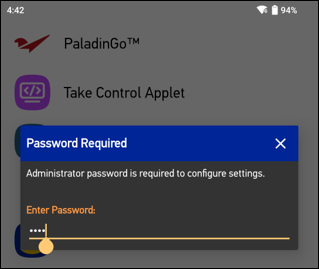
Figure 1: Password Required
-
- Select the gear icon in the top right.
- Select Exit Launcher.
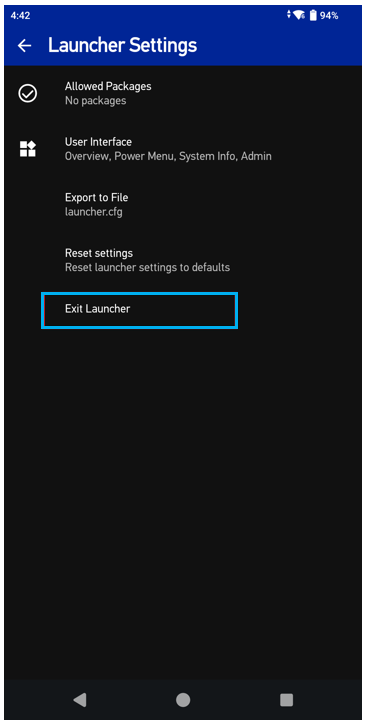
Figure 2: Exit Launcher
Option 2: On the Memor Home screen
-
- Select the DL Utils folder.
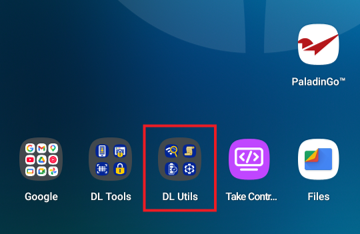
Figure 3: DL Utils
-
- Select Battery Manager.
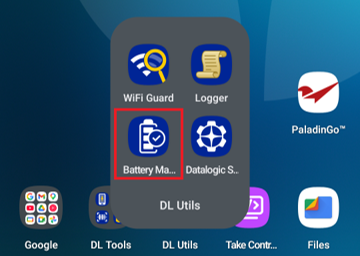
Figure 4: DL Utils/Battery Manager
-
- Select the hamburger menu (three lines) in the top left.
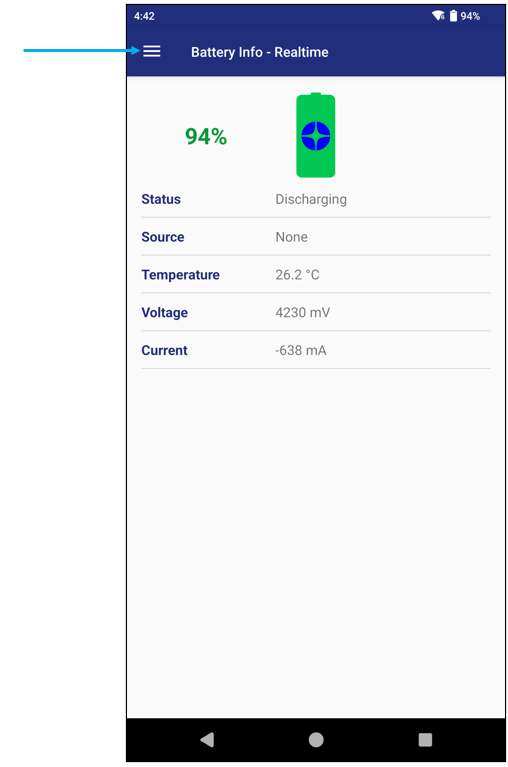
Figure 5: Battery Info
- Under Charging Profile, select Setup.
Option 3: Select desired Charging Profile
- Select up to two attributes at a time
- Battery Lifetime, for overall health
- Maximum Capacity, to charge to around 100%
- Charging Speed, for maximum charging speed
- Select Apply Profile at the bottom to confirm changes.
To return to the Launcher:
- Select the Home (circle) button at the bottom to return to the Home screen.
- Select the DL Tools folder. In the folder, select Launcher.
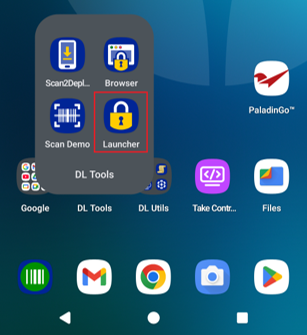
Figure 6: Launcher
The user is returned to the Launcher.
If you have questions or suggestions about this information, contact support@paladinpos.com.
*Content is subject to change. For the most recent version, visit the Help Portal.
Printed on: 10/20/26
